Activate a workspace with a redeem code
A redeem code is a 16-character alphanumeric token that activates a trial workspace without a credit card. Your Retrievy account representative issues one when you sign up for a proof of concept, a partner-led evaluation, or an extended demo. The code carries the plan, trial duration, and seat or data-source allocation. You do not pick a plan yourself.
Codes look like this:
H7K3-9MNP-2RVW-XJDF
The alphabet excludes ambiguous characters (no 0, O, 1, I, L), so you can read the code aloud without confusion. Dashes are decorative; pasting the code with or without them works the same.
Before you start
- A code from your Retrievy account representative. Codes have an expiry date and a maximum number of uses. The person who sent it to you can confirm both.
- A Retrievy account at retrievy.com (you signed up with name, email, and password). Without an account the code has nowhere to land.
- The workspace name you want to use. Once the trial activates, the name becomes part of your workspace URL (something like
your-name.retrievy.com) and you cannot change it later.
Where the redeem flow lives
After you sign in to retrievy.com you land on Managed Environments (the central dashboard that lists every workspace you own). If this is your first workspace, the Deploy Environment wizard opens automatically. Otherwise click the lime Deploy Environment button at the top of the page.
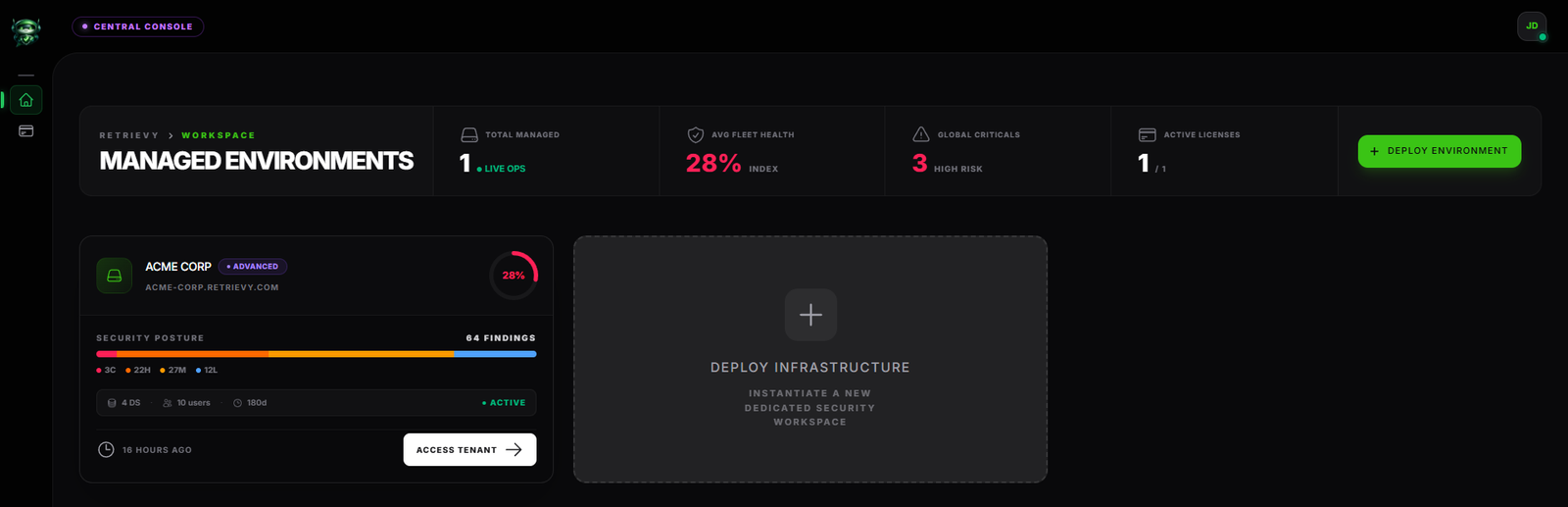
The wizard is a three-step flow. The redeem path branches off at step 2.
Step 1. Name the workspace
The first step is the same regardless of whether you redeem a code or pay with a card. Type the workspace name in the What should we call your workspace? field. As you type, the form shows a live preview of the URL underneath, for example acme-corp.retrievy.com.
The name has three rules:
- Three characters minimum, 255 maximum.
- Letters, numbers, spaces, and hyphens only. Retrievy converts the name to a URL-safe slug for the subdomain.
- It cannot be a reserved subdomain like
api,www, oradmin. If you pick one, the inline preview shows a red error and the Next Step button stays disabled.
The badge next to the field reads Permanent. The workspace name is set at this step and never editable afterward.
Click Next Step.
Step 2. Choose the redeem path
By default, step 2 shows the plan picker (Essentials, Advanced, and Build Your Own). To switch to the redeem path, scroll to the bottom of the plan list and click the link:
Have a redeem code? Use it instead.
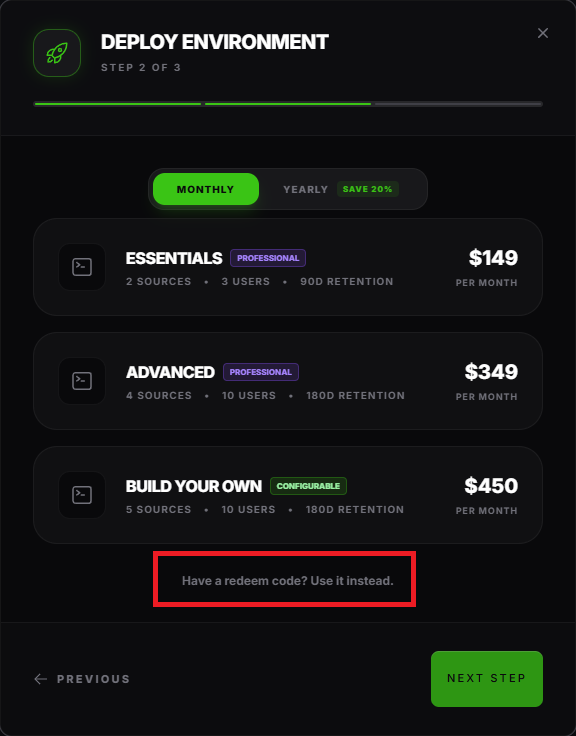
The plan cards disappear and a single Redeem a Trial Code card replaces them. The header reads:
Enter the code provided by your Retrievy account representative. The plan and trial duration are determined by the code; no card is required.
Step 3. Enter and verify the code
Type or paste the code into the Redeem Code field. The placeholder hint shows the expected format (XXXX-XXXX-XXXX-XXXX).
Click Check next to the field. Retrievy validates the code and one of three things happens:
- The code is valid. The button label changes to Verified and turns green. A summary card slides in below showing what you are about to activate.
- The code is invalid. A red message appears below the input. See the troubleshooting section for what each message means.
- You are clicking too fast. Retrievy rate-limits verification to ten attempts per IP per minute and thirty per user per hour. If you exceed that, the message reads Too many code attempts. Wait a moment before trying again. Pause for a minute and try once more.
The verified preview
When the code is valid, the green summary card shows exactly what your trial will give you:
| Row | What it means |
|---|---|
| Plan | The plan the trial workspace will run on (Essentials, Advanced, or Build Your Own). |
| Data sources | Maximum cloud accounts, FortiGate devices, and Active Directory domains you can connect. |
| User seats | Maximum teammates you can invite during the trial. |
| Data retention | How long Retrievy keeps scan results before they age out (varies by plan). |
| Expires in | Trial duration in days (1 to 365, set by your Retrievy representative). |
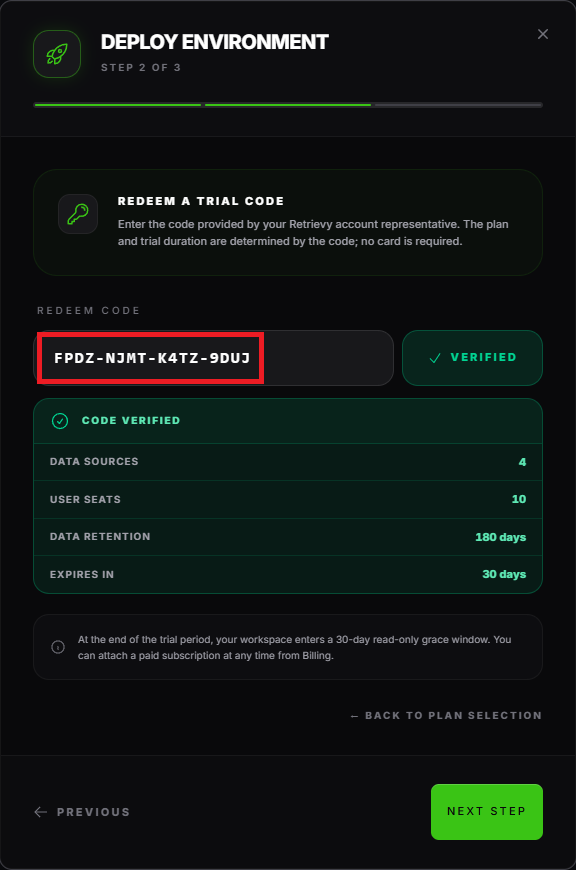
If you edit the code after verifying it, the green pill disappears and you have to click Check again. This prevents the case where you verify code A, edit it to code B, and accidentally submit B against a preview that no longer matches.
Click Next Step to advance.
Going back to plan selection
If you change your mind, click ← Back to plan selection at the bottom of the card. The plan picker comes back, the typed code is cleared, and you can choose Essentials, Advanced, or Build Your Own instead.
Step 4. Activate the trial
Step 3 of the wizard is the Activate Trial Workspace confirmation screen. It summarizes what is about to happen:
Provision a dedicated environment for [your workspace name] on the [plan name] plan for the next [N] days. No card required.
The card below repeats the trial plan, trial duration, and (for Build Your Own codes) the data source and seat counts. Take one more look to confirm the workspace name and the trial term.
Click Activate Trial. Retrievy creates the workspace in the background. While provisioning runs, you see the Provisioning Infrastructure card on the dashboard with a progress indicator. The card lists what is happening:
- Creating Dedicated Database
- Running Migrations
- Seeding Security Roles
This usually takes 15 to 30 seconds. The card refreshes itself in real time. When provisioning finishes, the card flips to the normal workspace card with a yellow Courtesy License — [plan name] badge in the top-right corner.
The badge stays visible for the entire trial. After the trial ends, the workspace transitions to the standard payment lifecycle. See What happens when the trial ends below.
Inside the trial workspace
Click Access Tenant on the workspace card to open the trial. Everything works the same as a paid workspace:
- Connect data sources from Settings → Cloud Credentials, Settings → Windows Servers, and Settings → FortiGate Firewalls.
- Invite teammates up to your trial seat allocation from Settings → Team Members.
- Run scans, view findings, build remediation projects, generate PDF reports — all features included in the trial plan are unlocked from day one.
The trial respects the seat and data-source caps in the verified preview. If you try to invite more teammates than your trial seats allow, Retrievy shows the same Seat Limit Reached message a paid workspace would.
What happens when the trial ends
A few days before the trial expires, the workspace owner receives an email warning. To keep the workspace, convert the trial to a paid subscription:
- Open the trial workspace.
- From the workspace menu, click Billing.
- The Subscription Management page opens. Pick Essentials, Advanced, or Build Your Own and complete Stripe Checkout exactly as a non-trial workspace would.
Once payment clears, the Courtesy License badge disappears and the workspace continues uninterrupted with its full data history.
If you do not convert before the expiry date, the workspace transitions to the standard inactive-subscription lifecycle. See Plans and pricing for the access matrix that controls what stays readable, what gets locked, and the data retention window.
A redeem code activates exactly one workspace per use. If your code has multiple uses (your Retrievy representative set the use cap above 1 at issuance), each use must land on a distinct workspace. The same code cannot be reused on the same workspace, even if the first activation expired.
If your Retrievy representative pinned the code to a specific email at issuance, only the user whose Retrievy account uses that email can redeem it. Sharing the code with a teammate will fail with the message This code was issued for a specific email address. Sign in as that user and try again.
Troubleshooting
Symptom: Clicking Check shows That code isn't valid. Please double-check what you typed.
→ Fix: Re-type the code. The most common cause is a typo. The alphabet excludes 0, O, 1, I, and L, so if you wrote any of those, replace them with the digit or letter they look like.
Symptom: The preview returns We can't validate that code. Check the spelling and that it hasn't expired. → Fix: Same as above, plus the code may have expired or been revoked by the issuer. Contact your Retrievy account representative.
Symptom: This code has expired. Contact your Retrievy account representative for a new one. → Fix: Ask the person who sent you the code to issue a new one. Expiry dates are absolute and cannot be extended.
Symptom: This code has already been redeemed the maximum number of times. → Fix: The code has hit its use cap. Every code carries a maximum number of activations set at issuance. Ask for a fresh code, or have your representative raise the cap on a new code.
Symptom: This code is no longer valid. Contact your Retrievy account representative. → Fix: The code was revoked by the issuer (typically because it was sent to the wrong recipient or the trial offer changed). A revoked code cannot be reactivated. Request a new one.
Symptom: This code was issued for a specific email address. Sign in as that user and try again. → Fix: The code was pinned to a specific email at issuance. Sign out of Retrievy and sign back in as the user whose Retrievy account email matches the one the issuer specified.
Symptom: This workspace has already redeemed this code. → Fix: You already used this code on the same workspace. Pick a different workspace name in step 1, or use a different code on this workspace.
Symptom: Too many code attempts. Wait a moment before trying again. → Fix: Retrievy throttles validation to defend against brute-force attacks. Wait one minute and try again. If you continue to hit the limit while typing legitimate codes, sign out and back in to refresh the throttle, or use a different network.
Symptom: I activated the trial but my workspace card still shows Provisioning Infrastructure after a few minutes. → Fix: Provisioning rarely exceeds 30 seconds. If it persists past two minutes, the workspace card shows a red Provisioning Failed state with a Retry Infrastructure Setup button. Click it. If retry also fails, contact support at [email protected] with the workspace name.
Symptom: I want to switch from a paid plan to a redeem code on the same workspace. → Fix: Redeem codes activate new workspaces only. They cannot be applied to a paid workspace. If you have a code intended to replace a paid subscription, contact your Retrievy account representative for guidance.
Related
- Plans and pricing for the plan tiers the trial inherits.
- Manage your subscription for converting a trial to a paid plan.
- Seats and data-source quotas for how the trial caps behave inside the workspace.
- Create your workspace for the broader signup flow.