Compliance Hub
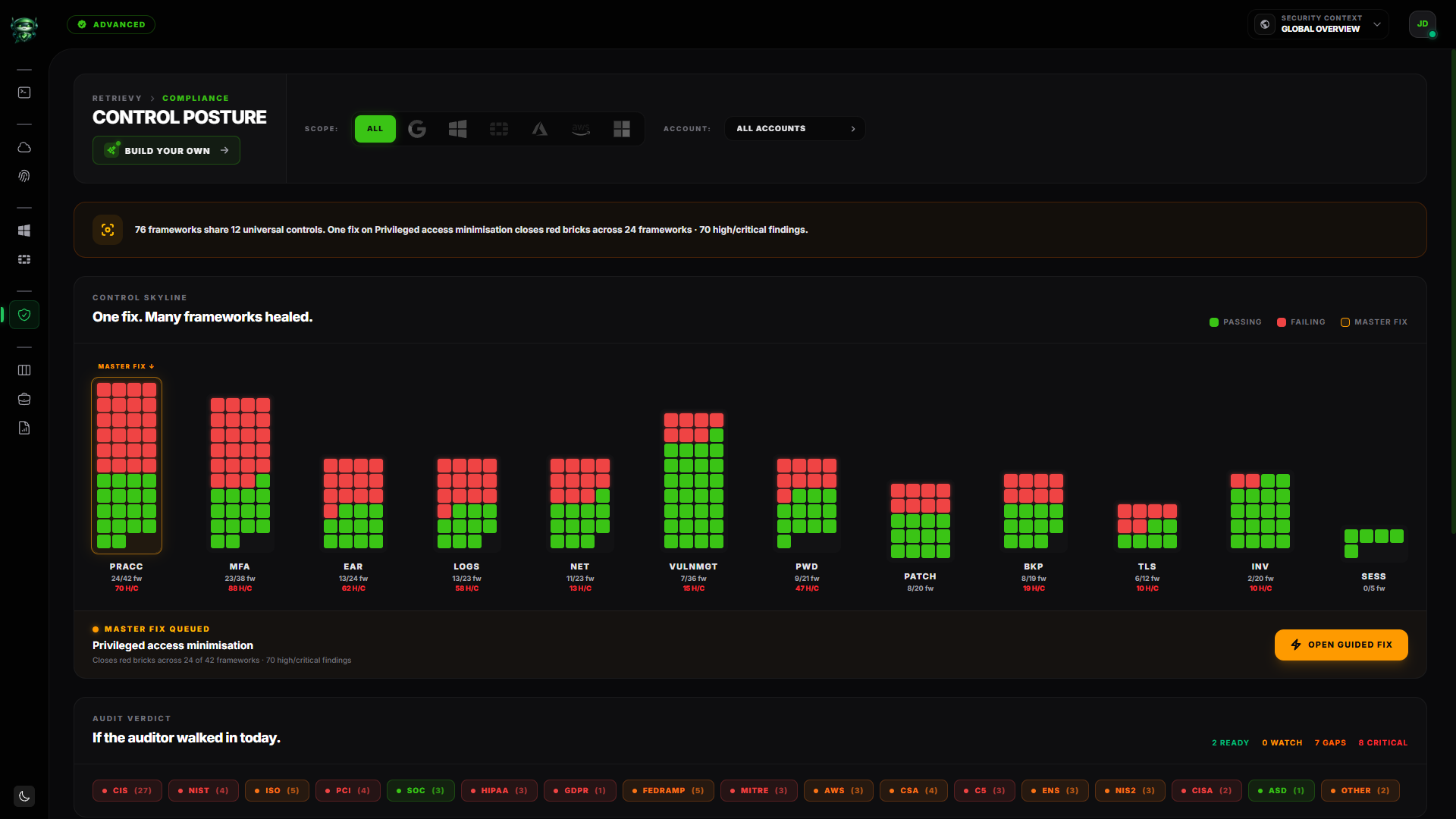
The Compliance Hub is the single page where every finding in your tenant becomes a compliance picture. Open it to see the Control Skyline, the Audit verdict strip, the worst-bleeding frameworks, and the full catalog of every framework Retrievy supports for your connected Data Sources.
The page header reads Control Posture. You'll find it under Compliance Hub in the main navigation.
Before you start
- A workspace with at least one Data Source connected (cloud account, agent, FortiGate, or Microsoft 365 tenant). Without one, the page shows Zero Data / Awaiting Scan and a link to Configure Data Sources.
- The View compliance frameworks permission, in the Compliance Frameworks group under Settings → Roles & Permissions. Without it the Compliance Hub link is hidden from the navigation.
The page, top to bottom
The Compliance Hub flows top to bottom:
- Header strip. The Retrievy / Compliance breadcrumb, the page title Control Posture, and the scope controls. When global scope is set to All, the strip shows the All / AWS / Azure / GCP / OCI / M365 provider toggle and the Account: dropdown. On a narrower scope, a single chip summarises the active provider and account. If your plan includes the Framework Builder, a BUILD YOUR OWN button sits in the header. See Custom Framework Builder.
- Narrative bar. A one-sentence summary that updates with your scope. It names the highest-impact starting point under the current filter.
- Control Skyline. The hero of the page. Heading One fix. Many frameworks healed. Detailed on Universal Controls (Skyline).
- Audit verdict strip. Heading If the auditor walked in today. Family pills for CIS, NIST, ISO, SOC 2, PCI, HIPAA, and the other catalogs in scope. See Audit verdict below.
- What's bleeding. Heading Top frameworks by penalty. The top four failing frameworks under the current scope, ranked worst-first.
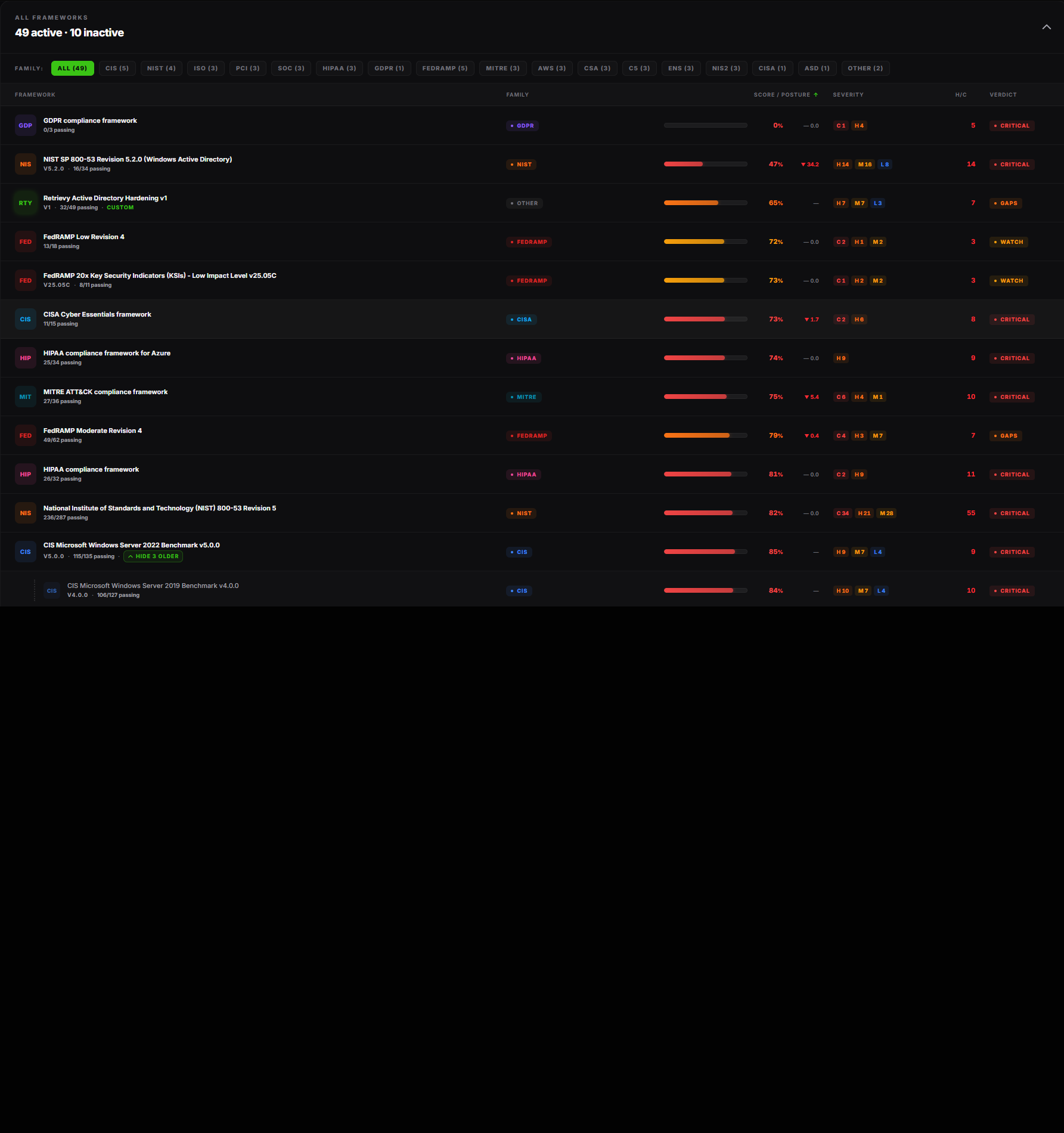
- All frameworks (collapsed by default). Every active and inactive framework Retrievy supports for your connected providers, with a family chip filter and column sorting. See All frameworks table below.

Scope controls
Every panel on the page reads from the same scope.
| Control | Options | Effect |
|---|---|---|
| Providers toggle | All, AWS, Azure, GCP, OCI, M365 | Filters the Skyline, the audit verdict, and the framework table to the picked provider. |
| Account: dropdown | All Accounts, then one entry per connected account in the picked provider. | Narrows the page to a single tenant or subscription. |
When you switch the scope, the Skyline towers, the verdict pills, the bleeding list, and the table all recompute together. The page is read-only. It never modifies findings; it re-projects them.
Audit verdict strip
A row of family pills. Each pill is one framework family (CIS, NIST, ISO, SOC 2, PCI, HIPAA, GDPR, FedRAMP, NIS2, ENS, CSA CCM, MITRE, AWS Well-Architected, and the rest of the catalog Retrievy publishes). The pill colour is the worst verdict across every member framework of that family under your current scope.
| Verdict | Meaning |
|---|---|
| ready (green) | At least 90% passing requirements and no failing Critical or High findings. Safe to walk an auditor through. |
| watch (amber) | Between 75% and 89% passing, or a small number of High findings. Healthy but worth a sweep. |
| gaps (orange) | Between 50% and 74% passing, or material gaps in the failing-requirement mix. |
| critical (red) | Below 50%, or one or more Critical findings present. Don't show this to an auditor today. |
The pill subtitle counts the member frameworks in that family. Click a pill to expand the family inline. You'll see every member framework as a smaller chip with its name, version, score, and a deep link to its drilldown.

What's bleeding
The four worst-scoring frameworks under the current scope. Ranked lowest score first; ties broken by the count of failing Critical and High findings. Each row links straight to that framework's drilldown where you can build a Remediation Project from its failing requirements.
A 7-day delta chip on the right shows the score change since yesterday's daily snapshot. A green ▲ means the score climbed; a red ▼ means it dropped.
All frameworks table
A collapsed-by-default table that lists every framework Retrievy supports for your connected providers, grouped by family. Open it to:
- Filter by family. A row of chips at the top: All, CIS, NIST, ISO, SOC 2, PCI, HIPAA, and so on. The chip count matches the number of frameworks under that family in your current scope.
- Sort by Framework, Family, Score, or H/C. Click any sortable header to toggle direction.
- Multi-version groups. When Retrievy supports several versions of the same catalog (for example CIS AWS 2.0, 3.0, 4.0, 5.0, 6.0), the table shows only the latest version on the surface, with a +N versions chip. Click the chip to expand the older versions inline.
Below the active rows, an Inactive frameworks section lists every catalog Retrievy supports for which no Data Source is connected in this tenant. Those frameworks score 100% by absence, which is misleading, so they sit hidden under a toggle. Connect a Data Source and they promote to the active section automatically.
The empty state
If you have no Data Sources connected and no findings ingested, the page renders Zero Data / Awaiting Scan with a one-line description and a Configure Data Sources button that takes you to the cloud-accounts settings page. Once a Data Source posts its first scan the Skyline populates within a minute.
How this affects your Retrievy Index
The Compliance Hub is a read-only projection. Opening it, filtering it, or drilling into it never changes any finding's state and never moves your Retrievy Index on the Command Center.
What does move the score is the work you start from this page. A failing requirement in a framework points to one or more findings. Resolving those findings, or moving them into a Remediation Project, drops the weighted failure count and lifts your score. Because every framework on this page reads from the same findings, fixing one finding can lift multiple frameworks at once. The Skyline names that effect explicitly. For the underlying math see How the Retrievy Index is calculated.
Permissions
Every toggle below lives in Settings → Roles & Permissions, under the group named in the second column.
| Toggle | Group | What it grants |
|---|---|---|
| View compliance frameworks (NIST, CIS, MITRE) | Compliance Frameworks | Open the Compliance Hub, the Skyline drawer, and any framework drilldown. |
| Create new remediation projects | Remediation Projects | The Create Project and Open guided fix CTAs on this page and inside the Skyline drawer. |
| Export compliance reports | Compliance Frameworks | Generate a compliance PDF for an in-scope framework from the Reports module. |
Workspace admins have every permission by default.
Troubleshooting
Symptom: The Compliance Hub link doesn't appear in the navigation. → Fix: Your role is missing the View compliance frameworks permission. Ask a workspace admin to grant it, then reload.
Symptom: The Skyline is empty and the page says No universal controls map to the current scope. → Fix: Either the picked provider has no connected accounts, or no findings have been ingested yet. Switch the Providers toggle to All, then check Settings → Data Sources to confirm at least one account is connected and scanned.
Symptom: The Audit verdict strip shows every family as ready but the Skyline shows red bricks. → Fix: Your Account: dropdown is narrowed to an account with no findings. Switch it to All Accounts to see the full posture.
Symptom: A framework you expect doesn't appear in the table. → Fix: Open the Inactive frameworks toggle at the bottom of the All frameworks section. If the framework is listed there, Retrievy supports it but you haven't connected a Data Source that emits findings for it yet. Connect the matching provider and it moves to the active list.
Related
- Universal Controls (Skyline). The hero on this page, explained in depth.
- Framework Drill-Down. What you see when you click a framework.
- Custom Framework Builder. Author your own framework by mixing requirements from any catalog.
- Remediation Projects. Turn failing requirements into a tracked project.
- Security Exceptions. Accept the risk on a requirement you won't fix.
- How the Retrievy Index is calculated.