Custom Framework Builder
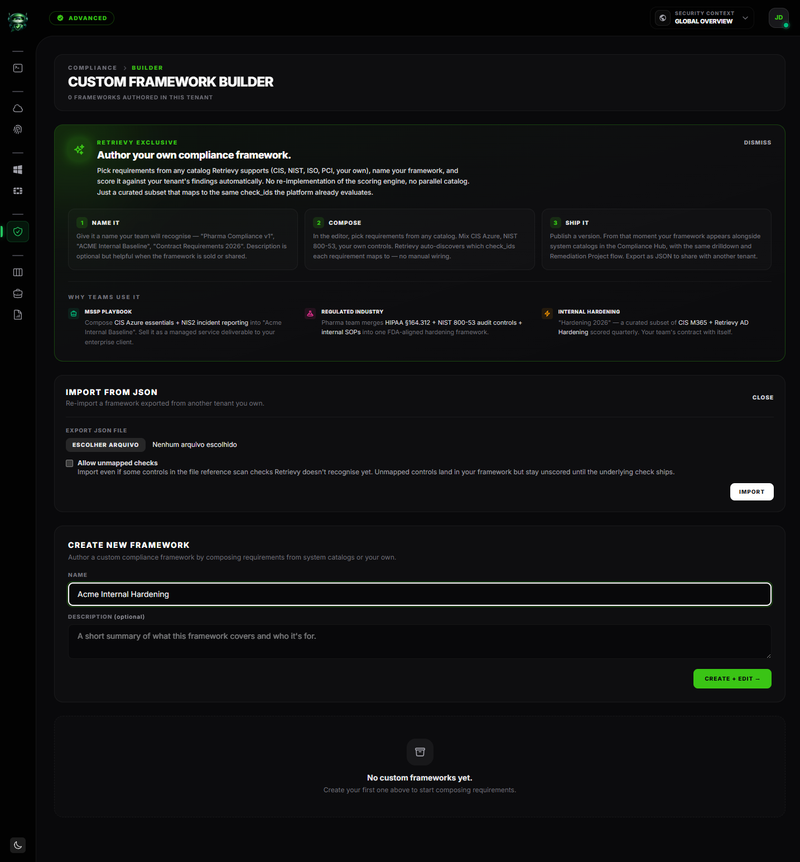
The Custom Framework Builder lets you author your own compliance framework. Pick requirements from any catalog Retrievy supports, mix them with requirements you've authored before, give the result a name, and ship it. From that moment your framework appears next to the system catalogs on the Compliance Hub and scores against your tenant's findings on the same scoring engine the system catalogs use.
You'll find it at Compliance Hub → BUILD YOUR OWN in the header, or directly at /compliance/builder. The page header reads Custom Framework Builder.
The Builder is gated by the Custom Framework Builder feature flag, which ships with the MSSP plan. See the plan feature matrix for the full breakdown.
Before you start
- A workspace on a plan that includes the Custom Framework Builder. Without it, the BUILD YOUR OWN button is hidden and the
/compliance/builderURL returns 403. - The View compliance frameworks permission, in the Compliance Frameworks group under Settings → Roles & Permissions.
- At least one Data Source connected, so the requirements you pick have real findings to score against. Importing a framework whose checks have no findings in your tenant still works (see Allow orphan check IDs below).
What the page does
There are two screens:
- The list page at
/compliance/builder. Shows the existing frameworks you've authored, plus the Create New Framework form and the Import from JSON panel. - The editor page at
/compliance/builder/<versionId>. The two-panel composer where you pick requirements from a source framework on the left and assemble your version on the right.
Create a new framework
Open the Create New Framework form on the list page. Fill in:
| Field | Notes |
|---|---|
| Name | Required. Up to 160 characters. The slug is derived from the name automatically (Pharma Compliance v1 becomes pharma-compliance-v1). |
| Description | Optional. Up to 1000 characters. Useful when the framework is sold to a client or shared between tenants. |
Click Create + Edit →. Retrievy creates the framework with an empty v1 and drops you straight into the editor.
Compose requirements
The editor is a two-panel layout.

Left panel: Source framework
A picker at the top labelled Source framework. The dropdown lists every system catalog Retrievy supports for your connected providers (CIS, NIST 800-53 r5, NIST CSF, ISO 27001:2022, SOC 2, PCI DSS 4.0, HIPAA, GDPR, FedRAMP Low and Moderate, NIS2, ENS, CSA CCM, Essential Eight, AWS Well-Architected, CISA, C5, MITRE ATT&CK, and the rest), plus every other custom framework you've authored in this tenant (marked [Custom]).
Below the picker, each requirement in the chosen source shows:
- The external ID (for example
1.1). - The requirement title.
- The number of underlying checks.
- A + button on the right.
Click + to attach the requirement to your version. Or drag the row across to the right panel. Either way, the row's right-side label flips to Added and the row dims, so you don't double-attach.
You can switch the source dropdown freely. Mix CIS Azure with NIS2 incident-reporting requirements and your own internal hardening controls in the same framework. Retrievy auto-detects the underlying check IDs each requirement carries, so you don't need to map checks by hand.
Right panel: Your version
A list of the requirements currently in your version. Each row shows:
- The external ID (kept from the source).
- The requirement title.
- A small from <source-slug> footer naming which catalog it came from.
- An × button to remove the row.
The header above the list shows the framework name, the version label, and the requirement count.
Edit the metadata
The framework name and description sit at the top of the editor header. Edit either inline; the change saves on blur. The name is shared across every version of this framework, not only the version you're editing.
Versions and locking
Every framework has one or more versions. The latest version is the editable one. As soon as a Remediation Project binds to a version, that version locks and a banner appears:
This version is locked. Locked on
<timestamp>. A Remediation Project is bound to it. Clone forward to a new version to make edits.
To edit further, fill in the v2 field next to the banner with a new version label and click Clone forward. Retrievy copies every requirement from the locked version into a fresh editable version and redirects you to its editor. The default suggestion follows the existing version label (1 becomes 2, 2.0 becomes 3.0, anything non-numeric becomes <current>-edit).
The version chips on the list page show a small lock icon when a version is locked. Click any chip to open that version's editor in read-only mode.

Export and import
Export a framework
In the editor header, click Export. Retrievy downloads a portable JSON file containing the framework metadata, the version, every requirement, and the check IDs they carry. Use it to:
- Move a framework between tenants you own.
- Hand a framework to a client tenant.
- Back up a version before forking.
Import from JSON
On the list page, open the Import from JSON panel. Pick the exported JSON file. Two toggles control the import:
| Field | Notes |
|---|---|
| Export JSON file | The file you exported from another tenant. Required. |
| Allow orphan check IDs | When ticked, the import accepts requirements that reference checks Retrievy supports but for which this tenant has no findings yet (because the matching Data Source isn't connected). The orphan requirements show in the editor and start scoring as soon as you connect the matching provider. |
Click Import. A status banner reports success or failure. On success, the new framework appears at the top of the Your frameworks list, with its full version history preserved.
Delete a framework
Each framework card on the list page has a trash icon. Click it. The card turns red and a Confirm delete button replaces the icon. Click Confirm delete to remove the framework, or Cancel to back out.
The delete behaviour adapts to the framework's history:
- No version is locked. The framework is hard-deleted, along with every version, every requirement, and every export trail.
- At least one version is locked. The framework is soft-deleted. It disappears from the Compliance Hub and from this list, but historical Remediation Projects bound to the locked version keep resolving against it.
Either way, deleting never touches the underlying findings.
How this affects your Retrievy Index
Authoring a framework, importing JSON, and toggling versions never changes any finding's state and never moves your Retrievy Index directly.
What moves the score is the work you launch from a custom framework. Once published, your framework drilldown surfaces failing requirements the same way a system catalog does. Tick the failing requirements, click Create Project from Selection, and the findings land in a tracked Remediation Project. Closing those findings drops the weighted failure count and lifts your Retrievy Index. The math is in How the Retrievy Index is calculated.
Because every requirement you pick carries the same check IDs as its source, fixing one finding can lift your custom framework AND every system catalog that shares those checks. The Ripples into chips on the drilldown make the overlap explicit.
Permissions
Every toggle below lives in Settings → Roles & Permissions, under the group named in the second column.
| Toggle | Group | What it grants |
|---|---|---|
| View compliance frameworks (NIST, CIS, MITRE) | Compliance Frameworks | Open the Builder, the editor, and any custom framework's drilldown. |
| Create new remediation projects | Remediation Projects | The project CTAs on the drilldown that bind a Remediation Project to a custom framework version. |
| Export compliance reports | Compliance Frameworks | Generate a PDF for a custom framework from the Reports module. |
The Builder also requires the Custom Framework Builder plan feature. Workspace admins have every permission by default, but plan gates apply to admins too.
Troubleshooting
Symptom: The BUILD YOUR OWN button doesn't appear in the Compliance Hub header. → Fix: Your plan doesn't include the Custom Framework Builder feature. Check the plan feature matrix and contact Retrievy support to upgrade.
Symptom: Created a framework but no requirements are scoring. → Fix: Open the editor. The version is probably empty. Pick a source framework and attach the requirements you want to track. The score recomputes within a minute.
Symptom: Imported a JSON export but several requirements are missing. → Fix: The export referenced checks Retrievy supports for Data Sources you haven't connected. Tick Allow orphan check IDs and re-import. The orphan requirements land and activate as soon as the matching provider is connected.
Symptom: Clone forward failed with a version-label error. → Fix: The label you typed is already used by another version of this framework. Pick a new label. The default suggestion in the field follows the previous version's label and is usually safe.
Symptom: Deleted a framework but a Remediation Project still references it. → Fix: That version was locked when you deleted, so the framework was soft-deleted to preserve the project. The framework no longer shows in the Builder or on the Compliance Hub. The project keeps resolving against the locked version on its own dashboard.
Symptom: Renamed a framework but the slug in the URL didn't change. → Fix: Expected. The slug is derived from the name at creation time and locked from then on, so existing deep links keep working. Create a new framework if you need a new slug.
Related
- Compliance Hub. Where your custom frameworks appear alongside the system catalogs.
- Framework Drill-Down. The per-framework view your custom frameworks use.
- Remediation Projects. What locks a version.
- Plan feature matrix. Confirm your plan includes the Custom Framework Builder.
- How the Retrievy Index is calculated.