Framework Drill-Down
The Framework Drill-Down is where you go after picking a framework on the Compliance Hub. It shows the framework's score, the failing requirements grouped by severity, the cross-framework ripple of each requirement, and the one-click path into a Remediation Project.
You'll find each framework at /compliance/<framework-slug>. The breadcrumb reads Retrievy / Compliance / <slug>.

Before you start
- A workspace with at least one Data Source connected whose findings map to this framework.
- The View compliance frameworks permission, in the Compliance Frameworks group under Settings → Roles & Permissions.
- To use the project CTAs you also need the Create new remediation projects permission, in the Remediation Projects group.
The header
The page header is split into two panels:
- Title panel (left). The breadcrumb, the framework name as the heading (for example CIS AWS 5.0), the version chip, and badges.
- Score panel (right). A coloured square showing the score percentage (green over 75, amber 50 to 75, red below 50), the Passing Requirements count as
N / M, and a progress bar.
Two badges may appear next to the version:
| Badge | Meaning |
|---|---|
| Custom | The framework was authored in your tenant through the Custom Framework Builder. |
| Deprecated | Retrievy still resolves this framework so historical Remediation Projects keep working, but a newer version is available. Switch to the latest when you can. |
The Focused via Control Skyline chip
If you landed here from the Universal Controls drawer, an amber chip appears between the header and the severity strip. It names the universal control and counts the requirements in scope. While the chip is active, the page hides every requirement that doesn't bind to that control.
Click Clear focus × on the chip to drop the filter and see the full requirement set.

Severity strip
A row of cards under the header. One per severity, plus a separate Hygiene Observations card when informational findings exist.
| Card | What it counts |
|---|---|
| Critical (red) | Failing findings of Critical severity under this framework. |
| High (orange) | Failing findings of High severity. |
| Medium (amber) | Failing findings of Medium severity. |
| Low (blue) | Failing findings of Low severity. |
| Hygiene Observations (zinc) | Informational findings. Informational, no score impact. They sit on the requirement for context but don't drop the score. |
Highest leverage hero
The green banner that names the small set of failing requirements with the biggest cross-framework ripple under your current tenant. The heading reads Fix N requirements here to also lift M other frameworks.
Each of these requirements shares its underlying check IDs with sibling frameworks across your tenant. Close one and the win propagates to every framework that maps to those checks. No other compliance view in the product gives you this picture, because no other view reads from the unified check layer.
Click See the N requirements to expand the list. Each entry is anchored, so clicking one scrolls the row into view and flashes the corresponding row in the requirements list below.
The Project these N button on the right of the banner takes you to the Remediation Project wizard with the requirements pre-selected. You need the Create new remediation projects permission to see this button.

Action toolbar
A toolbar above the requirements list. From left to right:
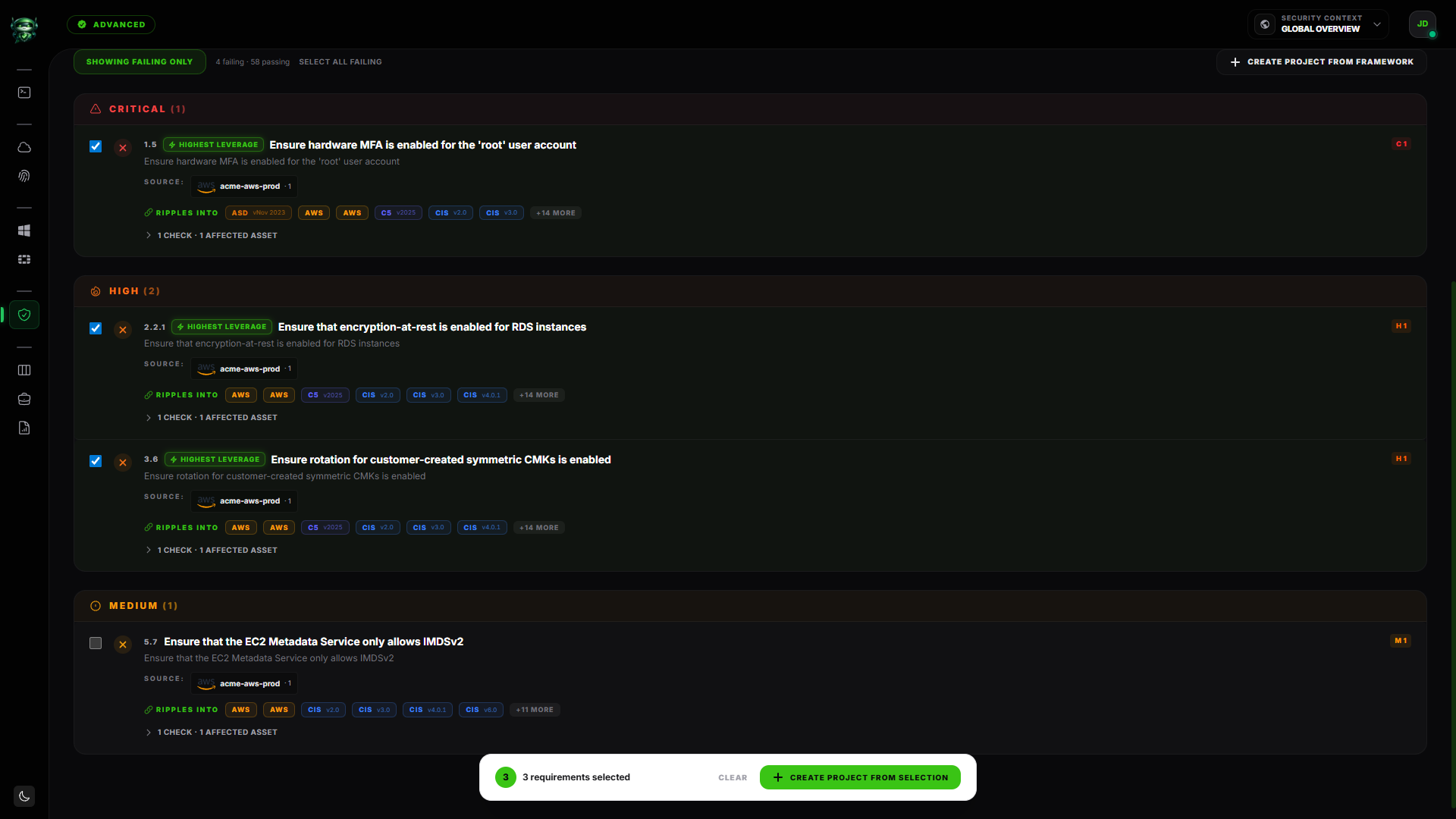
- Showing Failing Only / Showing All toggle. Showing Failing Only is on by default. Click it to flip to Showing All, which renders the passing requirements alongside the failing ones.
- A count line: N failing · M passing.
- Select all failing (only when there's at least one failing requirement and you have project-creation permission). Ticks the checkbox on every failing requirement at once. The selection then drives the sticky action bar at the bottom of the page.
- Create Project from Framework. Sends every failing requirement in this framework to the Remediation Project wizard.
Requirements list
The body of the page. Every requirement appears as a row, grouped by severity buckets in this order: Critical, High, Medium, Low, Passing. The Passing group only renders when the toggle is set to Showing All.
Each row shows:
- A status icon (red × for failing, green ✓ for passing).
- A bulk-select checkbox on the left of failing rows (when you have project-creation permission).
- The requirement external ID (for example
1.1.1) followed by the title. - A short description.
- Per-severity finding-count chips on the right (C N, H N, M N, L N, i N for informational).
- A Highest leverage chip on the three rows whose fix would ripple across the most other frameworks, with a hover tooltip naming that ripple count.
- A Source: row of badges listing the Data Sources that contributed findings under this requirement (provider icon + account name + finding count).
- A Ripples into row of small family-tinted chips. Each chip names another framework that shares this requirement's check IDs. Click a chip to jump to that framework's drilldown. Surplus collapses into a +N more chip with a full-list tooltip.
- An expand toggle that reveals the Checks performed list (humanised check names plus raw check IDs in monospace) and an Affected assets list (up to 10 resources, with overflow noted).
Bulk selection and the sticky action bar
Tick the checkbox on one or more failing requirements and a dark action bar locks to the bottom of the screen:
- A circular badge counts the selected requirements.
- Clear drops the selection.
- Create Project from Selection opens the Remediation Project wizard with only the picked requirements' findings prepopulated.
The action bar disappears as soon as you clear the selection or navigate away.
Empty state
When the catalog has no requirements (for example a freshly imported custom framework with no requirements added yet), the page renders No requirements in this catalog. in place of the list. Open the Custom Framework Builder to add some.
How this affects your Retrievy Index
The drill-down is read-only. Opening it, expanding requirements, ticking checkboxes, or following ripple chips never moves your Retrievy Index on the Command Center.
What does move the score is the work you launch from this page. The CTAs (Create Project from Selection, Create Project from Framework, Project these N on the highest-leverage banner) all send the failing findings into a tracked Remediation Project. Closing those findings drops the weighted failure count that feeds the formula on How the Retrievy Index is calculated. The Ripples into chips make explicit which other framework scores will move alongside this one when you close the underlying check.
Permissions
Every toggle below lives in Settings → Roles & Permissions, under the group named in the second column.
| Toggle | Group | What it grants |
|---|---|---|
| View compliance frameworks (NIST, CIS, MITRE) | Compliance Frameworks | Open the drilldown, expand requirements, follow ripple links. |
| Create new remediation projects | Remediation Projects | The bulk checkboxes, Select all failing, Create Project from Selection, Create Project from Framework, and Project these N. |
| Export compliance reports | Compliance Frameworks | Generate a compliance PDF for this framework from the Reports module. |
Workspace admins have every permission by default.
Troubleshooting
Symptom: The score reads 100% but the Inactive frameworks section on the hub lists this framework. → Fix: The framework has no requirements in scope because no Data Source emits its checks. The 100% is by absence. Connect the matching provider and the score recomputes against real findings.
Symptom: A requirement shows Ripples into +5 more but the tooltip is empty. → Fix: The five extra frameworks are in your catalog but currently inactive. Open the Inactive frameworks toggle on the Compliance Hub to see them, or connect their provider so the ripple resolves to real chips.
Symptom: Clicked Create Project from Framework but the wizard says No eligible findings. → Fix: Every requirement is passing under the current scope, or every failing finding is already in another open project. Switch the framework's scope on the hub, or look for the existing project on Remediation Projects.
Symptom: A Deprecated badge appeared on a framework I was using. → Fix: Retrievy has published a newer version of the catalog. Open the All frameworks table on the Compliance Hub and pick the latest version. Your in-flight projects continue to resolve against the deprecated version until you migrate.
Symptom: The Focused via Control Skyline chip is showing 0 requirements in scope. → Fix: The framework has no requirements mapped to the picked universal control. Click Clear focus × to see the full requirement set.
Related
- Compliance Hub. The page you came from.
- Universal Controls (Skyline). The source of the Focused via Control Skyline chip.
- Custom Framework Builder. Author your own framework that drills down here.
- Remediation Projects. The destination of every project CTA on this page.
- Security Exceptions. Accept the risk on a requirement you won't fix.
- How the Retrievy Index is calculated.