Universal Controls (Skyline)
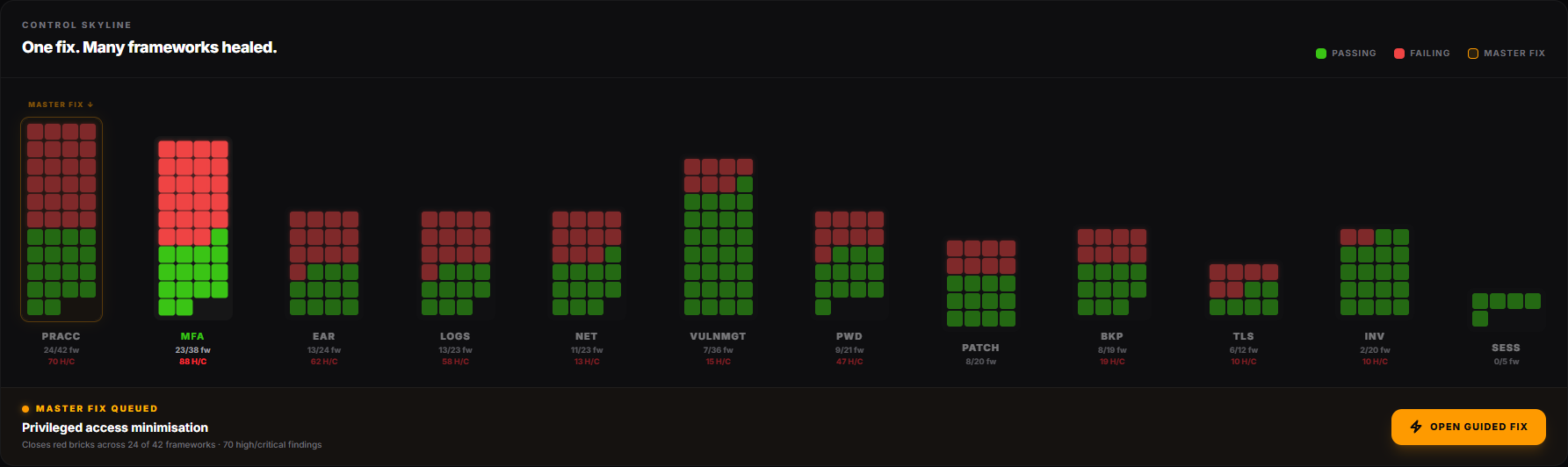
The Control Skyline is the hero of the Compliance Hub. It collapses every framework requirement Retrievy tracks into a dozen Universal Controls, then draws one tower per control. The tower with the most red bricks is the single fix that moves the most frameworks at once.
The heading on the panel reads One fix. Many frameworks healed.
Before you start
- A workspace with at least one Data Source connected and one scan completed. Without findings to project against, the Skyline panel reads No universal controls map to the current scope.
- The View compliance frameworks permission, in the Compliance Frameworks group under Settings → Roles & Permissions.
- To launch a fix from the drawer you also need the Create new remediation projects permission, in the Remediation Projects group.
How to read a tower
Each tower is a stack of small square bricks. One brick per framework requirement that this universal control unlocks.
- Red brick = at least one failing finding under that requirement, in the current scope.
- Green brick = the requirement is passing.
- Tower height counts the number of framework requirements this control unlocks. A taller tower means fixing it ripples through more catalogs.
- Master Fix glow marks the tower Retrievy thinks is the strongest starting point under your current scope. Look for the amber ring and the label MASTER FIX ↓ above it.
Below each tower:
- The short label in capitals (for example MFA, LOGS, PWD).
- A small X/Y fw counter: the number of in-scope frameworks where this control is currently failing, over the total it maps to.
- A red N H/C chip when there are open High or Critical findings under the control.
A legend in the panel header marks the three colours: Passing, Failing, Master fix.
The twelve universal controls
Each tower is one of these controls. The short label is what appears under the tower; the full name is what you see at the top of the drawer.
| Short label | Full name |
|---|---|
| MFA | Enforce MFA on privileged accounts |
| Logs | Centralised activity and audit logging |
| Pwd | Password complexity and rotation policy |
| PrAcc | Privileged access minimisation |
| EaR | Encryption at rest for stored data |
| Net | Network segmentation and ingress restriction |
| VulnMgt | Continuous vulnerability detection |
| Bkp | Backup completeness and verification |
| Inv | Configuration and asset inventory |
| Patch | Patch management and secure baseline |
| TLS | Secure transport (TLS) for data in transit |
| Sess | Idle session timeout enforcement |
Retrievy adds new universal controls over time. If your Skyline shows more than twelve towers, the catalog has grown since this page was published.
Open a tower
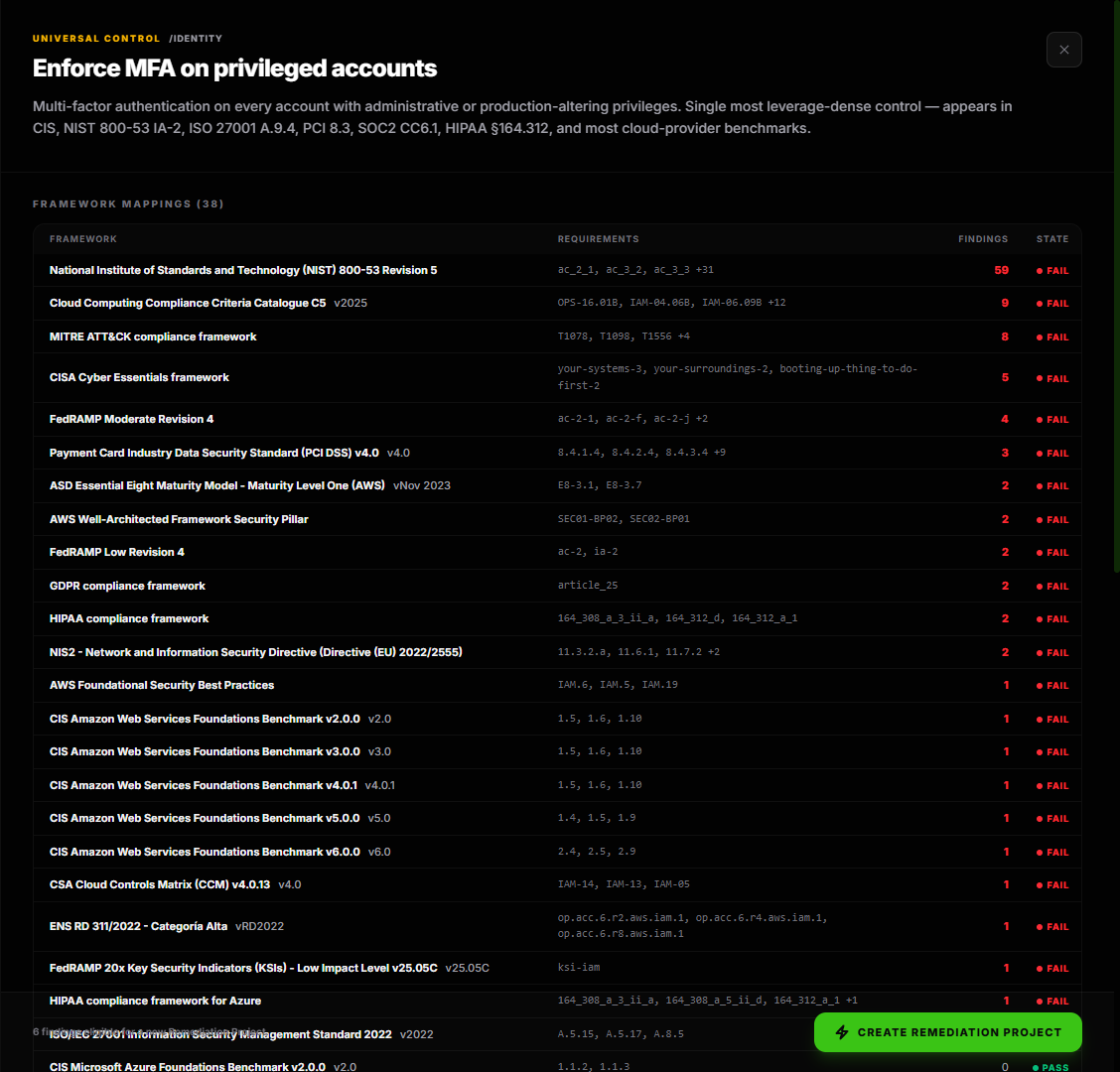
Click a tower to open the Universal control drawer on the right side of the page. The drawer has four sections.
Header
The drawer header shows:
- The amber label Universal control and the control category (for example
/identity,/detection,/data-protection). - The full control name as the heading.
- A one-paragraph description of what the control covers and why it matters.
Framework mappings
A table of every in-scope framework that maps to this control. Columns:
| Column | What it shows |
|---|---|
| Framework | The framework name plus version chip. Click the row to open that framework's drilldown, pre-filtered to the requirements that map to this control. |
| Requirements | The first three requirement IDs that bind to this control inside that framework. Overflow shows as +N. |
| Findings | The count of open failing findings under those requirements in the current scope. |
| State | Pass (green) when every requirement passes, Fail (red) when at least one fails. |
Clicking a framework name follows a deep link to its drilldown with a Focused via Control Skyline chip already applied. The drilldown then shows only the requirements bound to this control, with a one-click way to clear the focus.
Top failing checks
The five check IDs under this control that contribute the most failing findings in the current scope. Each row shows:
- The humanised check name (for example Ensure MFA is enabled for IAM root user).
- The raw check ID in monospace, smaller, for cross-reference with finding details.
- A red count of how many findings cite that check.
This is the what to actually fix list. Each check usually maps to a single misconfiguration class across many resources.
Top affected assets
The five resources (cloud accounts, IAM users, virtual machines, databases) that hold the most findings under this control. Each row shows the resource name or UID, its type, and the count of findings on it. Use this list to decide whether the fix is account-wide (rotate every IAM role) or asset-scoped (one S3 bucket).
Footer CTA
When the control has at least one open failing finding, the drawer footer shows:
- A count: N findings eligible for a new Remediation Project.
- A green Create remediation project button. Click it to land in the Remediation Project wizard with the project name pre-filled as Master fix: <control name> and the failing findings pre-selected.
When the control has no failing findings under the current scope, the footer reads Nothing failing under this control in the current scope. and the CTA is hidden.
The Master Fix
Retrievy picks one tower as the Master Fix under each scope. The tower with the amber ring and the MASTER FIX ↓ label is the structural answer to what should I fix first?. The pick is based on a combination of:
- The count of in-scope frameworks the control unlocks.
- The count of open failing findings tied to those frameworks.
- The severity mix of those findings (Critical and High count harder than Medium and Low).
When a Master Fix exists, a footer strip under the Skyline names it explicitly, counts the high-and-critical findings, and shows an Open guided fix button. The button opens the same drawer described above. Use it when you want the one-click answer without scanning the towers.

How this affects your Retrievy Index
Opening the Skyline or its drawer never changes any finding's state and never moves your Retrievy Index.
What moves the score is the work you launch from the drawer. Clicking Create remediation project moves the eligible findings into a tracked Remediation Project. Closing those findings drops your weighted failure count, which is the input to the formula on How the Retrievy Index is calculated. Because each universal control binds to many framework requirements at once, one fix here typically lifts several family scores in parallel.
Permissions
Every toggle below lives in Settings → Roles & Permissions, under the group named in the second column.
| Toggle | Group | What it grants |
|---|---|---|
| View compliance frameworks (NIST, CIS, MITRE) | Compliance Frameworks | See the Skyline, open the drawer, follow framework deep links. |
| Create new remediation projects | Remediation Projects | The Create remediation project button in the drawer footer and the Open guided fix Master Fix button. |
Workspace admins have every permission by default.
Troubleshooting
Symptom: No tower shows the MASTER FIX ↓ label. → Fix: Every in-scope control is passing, or no control has open High or Critical findings. There's nothing to highlight. Switch the Providers toggle to All to confirm.
Symptom: A tower is all green but the framework drilldown shows failing requirements. → Fix: The Skyline reflects the current page scope (Providers + Account). The drilldown reflects the framework's full requirement set. Either widen the scope, or open the failing requirement's drilldown to see the source account.
Symptom: Clicked a framework row in the drawer; the drilldown didn't filter. → Fix: The deep link relies on the Focused via Control Skyline chip. If the chip didn't appear on the drilldown, the framework's catalog has no requirements mapped to that control under the current scope. Click Clear focus × if the chip got stuck.
Symptom: Drawer says No framework in the current scope covers this control's check_ids yet. → Fix: Either the scope is too narrow, or no framework Retrievy supports for your connected providers binds to this control. Switch the Providers toggle to All. If the message persists, this control will populate once you connect a Data Source whose catalog covers it.
Related
- Compliance Hub. The page the Skyline lives on.
- Framework Drill-Down. Where the Skyline's deep links land.
- Remediation Projects. The destination of the Create remediation project button.
- How the Retrievy Index is calculated.