ISPM dashboard
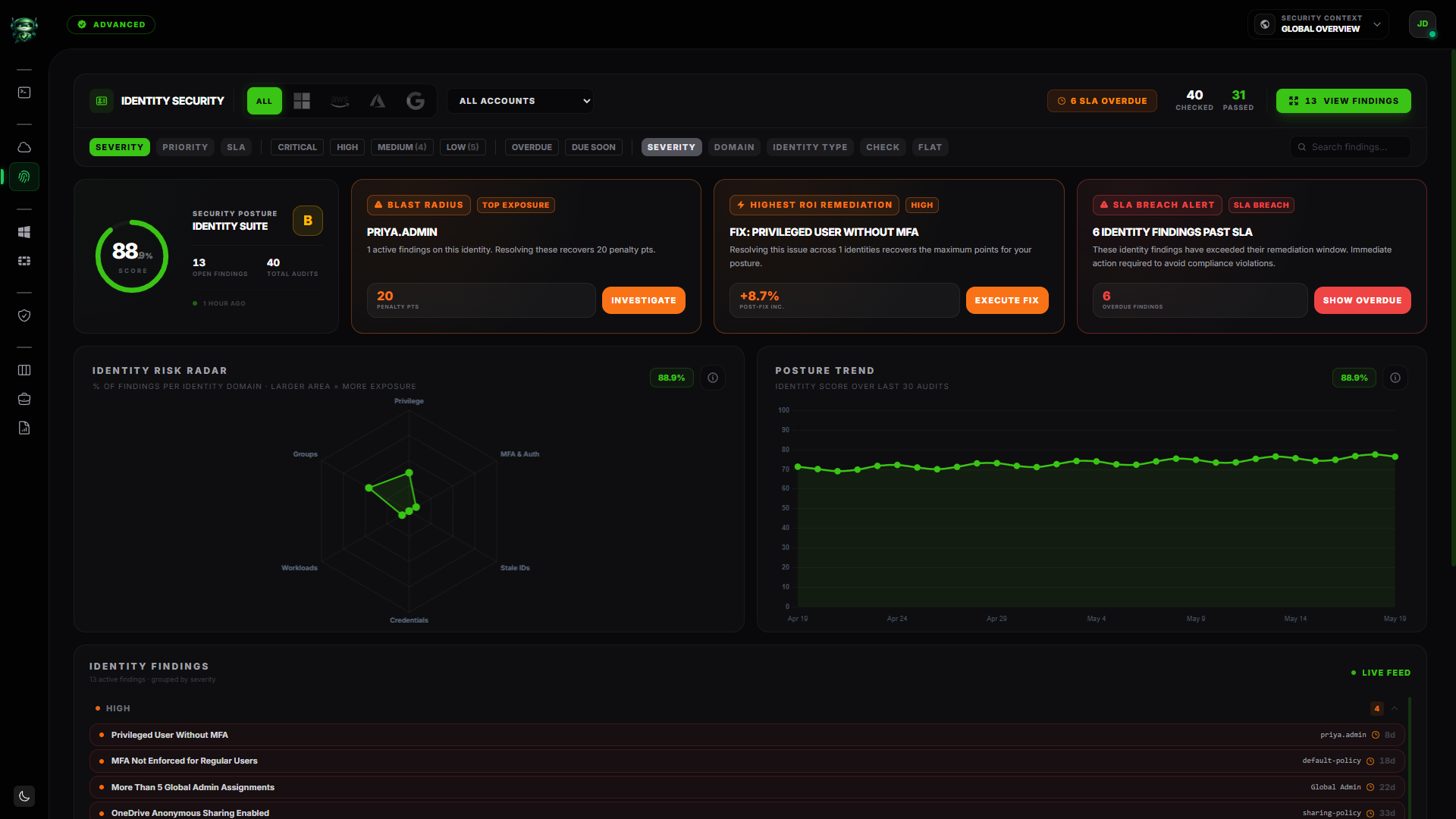
The ISPM dashboard is the per-module view of your Identity Security Posture Management posture. It covers your cloud IAM (AWS, GCP, Oracle), Microsoft Entra ID, and on-prem Active Directory all in one place.
The page header reads Identity Security. You'll find it under the ISPM entry in the navigation. The page is available on plans that include the ISPM module (see plan feature matrix).
Before you start
- A workspace with at least one connected identity source: AWS IAM, Microsoft Entra ID, Active Directory (via the Retrievy Agent on Windows), or another supported provider.
- Permission to read ISPM findings. In Settings → Roles & Permissions, your role needs either the View all ISPM findings across all accounts toggle or its scoped counterpart, under the ISPM (Identity Security) group. Without one of these the ISPM nav entry is hidden.
What you'll see
Same skeleton as the CSPM dashboard but tuned for identity:
- Header strip with the Provider selector (All, AWS, Azure Entra, GCP, Oracle Cloud, Active Directory) and the Account dropdown. An
<N> SLA Overduebadge surfaces breached SLAs. - Per-module score hero. Circular gauge with the percentage score, letter grade (A through F), Checked and Passed tiles, Last audit <time> ago footer.
- Top KPI strip. Checked, Passed, Open Findings, Total Audits.
- Identity Risk Radar. A 6-axis radar (more on this below).
- Filters row above the findings feed (sort, severity chips, SLA chips, group-by, search).
- Findings feed. Identity findings grouped by your selected dimension.
Identity Risk Radar
The Identity Risk Radar is what makes this dashboard distinct from the CSPM dashboard. Where CSPM plots eight cloud-infrastructure domains, ISPM plots six identity pillars:
| Pillar | What it covers |
|---|---|
| Privileged Access | Admin and root escalation risk, over-privileged accounts. |
| MFA & Auth | Authentication bypass risk, weak or missing MFA, legacy auth protocols. |
| Stale IDs | Dormant or never-used accounts that still carry permissions. |
| Credentials | Long-lived access keys, exposed secrets, password issues, Kerberoastable accounts, AS-REP roasting candidates. |
| Workloads | Service principals and workload identities (typically the most over-permissioned). |
| Groups | RBAC sprawl, deep group nesting, group inheritance issues. |
The radar title is Identity Risk Radar with the subtitle % of findings per identity domain · larger area = more exposure. The larger the area, the more exposure you carry in that pillar.
Hover any axis for a tooltip with the exact percentage. An info modal next to the radar explains how findings get classified into each pillar (it's keyword-driven against the rule name).
A small lopsided radar with most of the weight on the Privileged Access axis tells you the bulk of your identity risk is concentrated in over-privileged admin accounts. A balanced hexagon tells you the risk is spread across pillars and you need a wider remediation push rather than a single focused effort.
Provider and Account filters
The Provider selector covers every identity source Retrievy supports:
| Provider | What it pulls |
|---|---|
| AWS | AWS IAM (users, roles, policies, access keys, MFA). |
| Azure Entra (also called Microsoft Entra ID, formerly Azure AD) | Entra users, applications, service principals, conditional access. |
| GCP | GCP IAM bindings, service accounts, custom roles. |
| Oracle Cloud | OCI IAM users, groups, compartments. |
| Active Directory | On-prem AD via the Retrievy Agent. Includes Kerberoastable accounts, AS-REP roasting candidates, LAPS coverage, deep group nesting, and the rest of the AD CIS check set. |
Pick a provider to scope every card and the radar to that source. Account drills further into a specific connected tenant or directory inside the chosen provider.
Findings feed
Same toolbar pattern as the CSPM dashboard:
- Sort: Severity, Priority, SLA.
- Severity chips: Critical (N) / High (N) / Medium (N) / Low (N).
- SLA chips: Overdue and Due Soon.
- Group By: Severity, Domain, Check, Flat.
- Search with the placeholder Search findings....
- Clear resets every filter.
Click any finding to open the standard finding drawer. View Findings in the top-right opens the full findings modal with the page's filters pre-applied.
A note on filtering: the dashboard does not surface individual check chips (no "Kerberoastable", "InactiveAdmin", "PasswordNeverExpires" filter buttons). Use the search box to drill into specific check IDs.
Open Identity X-Ray
Select Identity X-Ray below Identity (ISPM) in the navigation to investigate the relationships and identities behind the findings.
Identity X-Ray adds six views: Overview, Attack Paths, Exposure Map, Auth Gaps, Explorer, and Zones. It combines identity inventory across Data Sources and draws privilege paths where the collected evidence supports them. Start with the Identity X-Ray overview.
Real-time updates
When an identity scan completes (either a cloud IAM scan or an Agent-driven AD scan), the dashboard refreshes in place. A toast reads <source> scan completed. Identity findings updated. The radar, score, KPIs, and findings feed all recompute live.
Empty states
| Condition | What the page shows |
|---|---|
| Identity providers connected but no scan yet | Zero Data / Synchronized with a Configure Identity Providers call-to-action. |
| All identity findings are resolved or accepted | Elite / Security Posture with the message Identity posture is hardened. No open security gaps or identity-related vulnerabilities found across your connected providers. |
What is NOT on this page (intentional)
- No per-check filter chips. The check-set is large (every AD CIS check plus every cloud IAM check); chips would crowd the UI. Use the search box to filter on a specific check ID or name.
- No per-provider score comparison panel. Switch the Provider selector to compare AWS vs Entra vs AD.
- No Scan Now button. Scans dispatch from the data source itself. For cloud IAM, that's Settings → Cloud Accounts. For AD, the Retrievy Agent on Windows runs on its own schedule (daily by default) and can be triggered with Scan Now from the agent's detail panel on Fleet → Agents.
How this affects your Retrievy Index
The ISPM per-module score on this page is the same number feeding the global Retrievy Index on the Command Center. Per-module weight is 5.0 (the default). Every Critical, High, Medium, or Low finding here contributes to the weighted failure count. See How the Retrievy Index is calculated.
To raise the ISPM score, work findings down on the Hardening Kanban or move them into a Remediation Project.
Permissions
Every toggle below lives in Settings → Roles & Permissions, under the group named in the second column.
| Toggle | Group | What it grants |
|---|---|---|
| View all ISPM findings across all accounts | ISPM (Identity Security) | The dashboard with every identity source visible. |
| View ISPM findings only for assigned accounts | ISPM (Identity Security) | The dashboard, restricted to identity sources assigned to the role. |
| Move cards and manage Kanban workflow | Kanban Board | Per-finding state changes from the drawer. |
| Approve, reject, and manage security exceptions | Security Exceptions | Creates an exception via the Accept Risk action. |
The ISPM module also needs to be included on your plan; see plan feature matrix. Workspace admins have every permission by default.
Troubleshooting
Symptom: The Active Directory chip doesn't appear in the Provider selector. → Fix: The chip only appears once an Agent has completed at least one AD scan. Check Fleet → Agents for the Windows agent's status; it should be Online with a recent heartbeat and a non-empty last-scan timestamp.
Symptom: Score reads 100 but I know we have stale admin accounts. → Fix: Either your provider or account filter is hiding the findings, or the affected findings are currently in Risk Accepted state. Switch Provider to All and check the Security Exceptions registry for the accepted entries.
Symptom: The radar is all stuck on the Credentials pillar but I expected Privileged Access to be higher. → Fix: Findings are classified into pillars by keyword on the rule name. A check like "Kerberoastable accounts" classifies to Credentials (cred-theft path), not Privileged Access. Open the radar's info modal for the keyword list, or use the search box on the findings feed to confirm what's flagged.
Symptom: A Microsoft 365 finding I see in the Command Center isn't on the ISPM dashboard. → Fix: Some M365 findings classify under CSPM (workload security, data protection) rather than ISPM. The Command Center sees both. Check the CSPM dashboard if it's missing here.
Related
- Command Center
- Hardening Kanban
- Install the Retrievy Agent on Windows
- Identity X-Ray
- How the Retrievy Index is calculated
- CSPM dashboard (same skeleton, different module)