Reports
The Reports module is where you generate PDFs for executives, auditors, and your own change-tracking. Four report types live here, each tuned for a different reader.
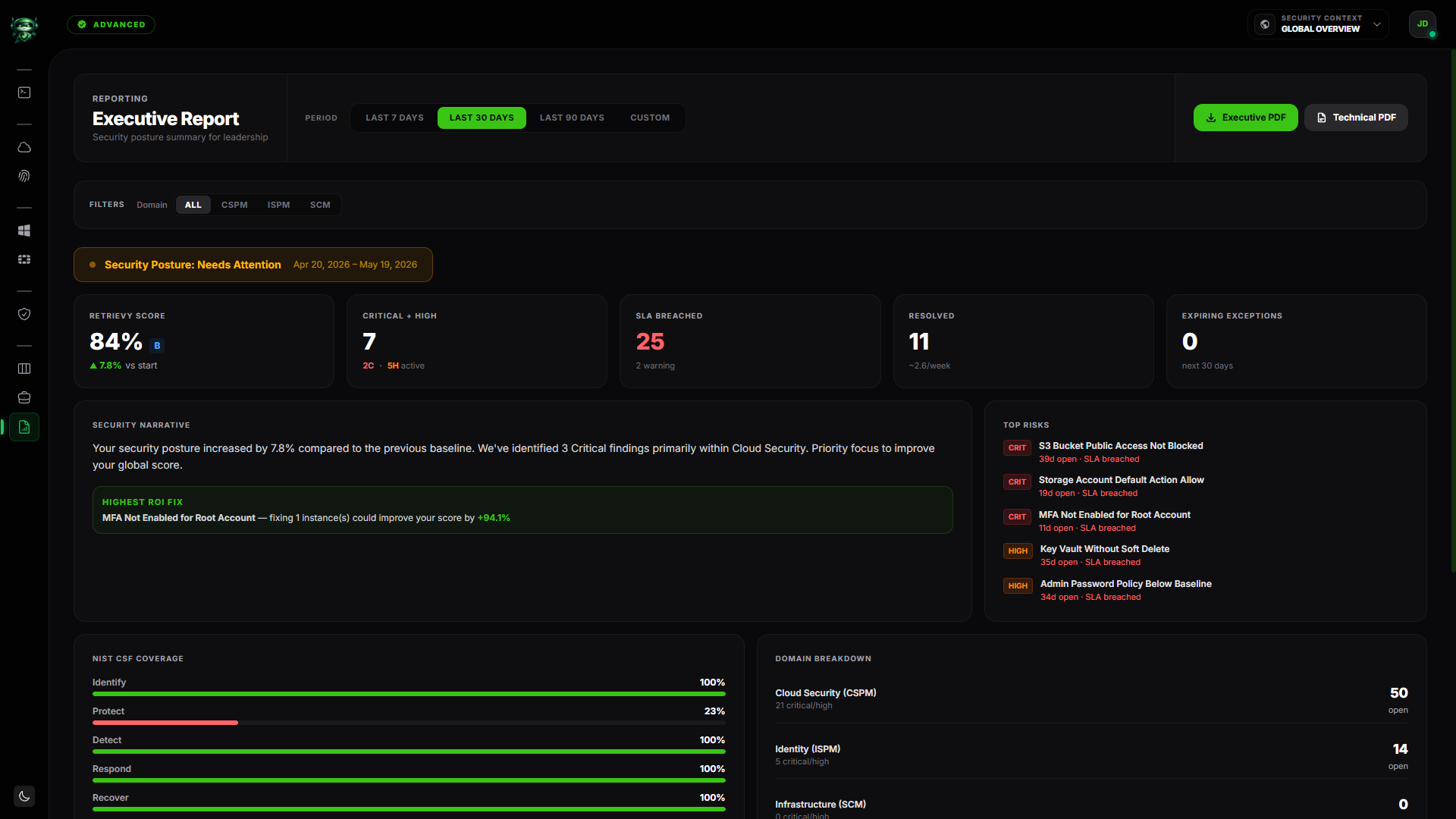
The page itself shows a live preview that mirrors what the PDF will contain. You can tweak the period and filters, see the preview update, then click the export button to get the file.
Before you start
- A workspace with at least one connected data source and findings ingested. With no findings the page shows Zero Data / Synchronized instead of a preview.
- The Generate and download PDF/SOW reports permission (under the Reports & Exports group in Settings → Roles & Permissions). Without it the export buttons are hidden.
- For the Executive Report and Technical Report PDFs specifically, your plan must include Executive PDF Reports. Essentials does not. Advanced and above do. See plan feature matrix.
Where to find it
Open Reports in the main navigation. The link appears for workspace admins by default. To grant Reports access to a non-admin role, your workspace admin needs to enable the Generate and download PDF/SOW reports toggle on that role (under the Reports & Exports group in Settings → Roles & Permissions).
The page is titled Executive Report, with Security posture summary for leadership underneath. Despite the title naming the executive variant first, both Executive and Technical exports are launched from the same page.
Filtering and period selection
Two controls at the top scope every metric, chart, and finding the PDF will contain.
Period
A button group with Last 7 Days, Last 30 Days, Last 90 Days, and Custom. Picking Custom reveals a date range picker.
Advanced filters
- Domain: All, CSPM, ISPM, or SCM.
- Account: multi-select chips. Only accounts with live scoring data appear.
If you set any filter, a yellow chip appears (Filtered view: PDF disclaimer will be applied) plus a Clear all button. The generated PDFs carry a Report Scope Disclaimer box on the cover stating exactly which domain and which accounts were included.
Executive Report
A 6-page A4-landscape PDF aimed at leadership. Six section headers, in order:
- Cover. Tag Cloud Security Executive Report, title Security Posture Report, period label, the workspace name uppercase, and a health signal banner reading Security Posture: Improving, Needs Attention, or Critical Risk.
- Executive Briefing. Five KPI cards (Retrievy Index with letter grade A–F, Critical+High count, SLA Breached, Resolved this period, Expiring Exceptions in 30 days), the Security Score Trend chart, the Posture Summary narrative, and the Highest ROI Action box.
- Risk Intelligence. Top 5 Findings by Priority Score table, SLA Accountability by Severity stacked bar chart, and the Risk Matrix: Service × Severity grid.
- Compliance Framework Coverage. NIST CSF function health (five functions with status badges Strong, Moderate, Needs Work), Retrievy Index by provider, and the Domain Posture Summary (CSPM, ISPM, SCM with status badges).
- Remediation & Velocity. KPIs (Current Active, Resolved This Period, Regressions, Active Projects) and the Active Remediation Projects table with progress bars and on-track / at-risk / overdue badges.
- Governance & Recommendations. Risk Exceptions Expiring in 30 Days table, a Hidden by Exception transparency callout (total findings currently suppressed by active exceptions), the Top 5 Prioritized Action Items numbered list, and a methodology footnote.
To export: click the Executive PDF button at the top of the page (or the larger copy in the Ready to export section at the bottom). The button shows Generating... for about eight seconds, then your browser downloads the file.
Filename pattern: Retrievy_Executive_Report_<workspace>_<from-Ymd>_<to-Ymd>.pdf.
Technical Report
A variable-length A4-landscape PDF aimed at the security team and external auditors. Capped at the top 200 findings by priority score with a note in the summary when the total exceeds 200.
Structure:
- Cover. Tag Technical Security Findings, title Technical Findings Report, workspace name, period, filter disclaimer if applicable.
- Summary. KPI strip (Total Active, Critical, High, Medium, Low, SLA Breached). Domain breakdown table (CSPM, ISPM, SCM with open and Crit+High counts). Risk by Service Category matrix (services across, severity down).
- Findings by Severity: one page (or more) per severity, Critical first. Each finding is a card with:
- Title (truncated to 90 chars).
- Check ID, service category, severity badge, domain badge.
- Provider, resource name, region.
- Days open, SLA status, priority score, owner if assigned.
- Remediation box with the fix guidance when available.
To export: click Technical PDF. Same eight-second generation, same download flow.
Filename pattern: Retrievy_Technical_Report_<workspace>_<from-Ymd>_<to-Ymd>.pdf.
Per-project report (Remediation Projects)
When you've grouped findings into a Remediation Project, you can export a project-specific PDF that shows only that project's findings, owners, and verification status. This is the report you hand to a customer to prove a hardening engagement is complete.
Triggered from the project's detail page (or from the Remediation Projects section on the Reports page).
Structure:
- Cover. Project name as title, status banner (Mission Accomplished / In Progress / On Hold), workspace name, completion or due date.
- Executive Achievement Baseline. KPI row (Initial Score, Projected or Final Verified Score, Posture Improvement %, Items Progress). Mission Initial Scoping & Observations box. Items Summary table with each finding, severity, account, owner, status (Verified / Exception / Pending) and verification method (Verified by Scan / Manual Signature).
- Technical Transition Inventory. Per-finding detail: title, service, account, region, severity, status, method, technical discovery context, consultant verification notes (if any), and risk-acceptance rationale (if marked accepted).
- Executive Achievement Summary & Conclusion on the final page.
Filename pattern: Retrievy_Hardening_Report_<project-name>_<Ymd>.pdf.
The per-project report is not gated by the Executive PDF Reports plan feature. Every plan can export it. Access is still subject to the Generate and download PDF/SOW reports permission and to your RBAC scoping on the project's cloud accounts.
Drift export
A configuration-change audit trail for SCM Active Directory and SCM FortiGate. Triggered from those dashboards, not from the Reports page.
- Format: CSV or PDF, your choice.
- Retention: the last 7 days of detected changes. Older changes aren't included.
- Scope: one account at a time. The export requires both an account ID and the source type (AD or FortiGate).
The CSV columns are Detected At, Mutation, Entity Type, Entity Name, Field, Old Value, New Value. The PDF is titled Hardening Drift History with the subtitle Configuration Audit & Remediation Tracking. Mutation badges are colour-coded: ADDED (green), REMOVED (red), MODIFIED (yellow).
Filename patterns:
- CSV:
drift_history_<account-id-slug>_<Y-m-d>.csv - PDF:
drift_report_<account-id-slug>_<Y-m-d>.pdf
The drift export is not gated by Executive PDF Reports either. Available on every plan.
What is NOT in this module (intentional)
A few things you might expect that are not here today:
- No scheduled reports. All reports are on-demand. There's no weekly or monthly auto-email.
- No report history. Generated PDFs are not stored. Each time you visit Reports you see the live current preview. If you need to compare a report from last month, keep the PDF yourself.
- No combined Compliance Hub export. The Compliance Hub itself has no export; use the Technical Report to get per-control / per-function detail or the Executive Report for the compliance summary page.
These are intentional gaps you should know about, especially if you're building a regular reporting cadence with your team.
How this affects your Retrievy Index
Reports are read-only. Generating an Executive PDF, Technical PDF, project PDF, or drift export never changes your score. The PDFs reflect the current Retrievy Index and the per-module scores at export time, plus the rolling history that's already on the dashboards.
If the score in a freshly exported PDF looks different from what's on the Command Center, check the report's Filter chip on the cover page. Filtered reports recompute the index against the filtered subset, which is by design but can surprise readers comparing to the full-workspace view.
Permissions
The Reports module currently surfaces a single role-grantable toggle in Settings → Roles & Permissions:
| Toggle | Group | What it grants |
|---|---|---|
| Generate and download PDF/SOW reports | Reports & Exports | Triggers every Executive, Technical, per-project, and drift export. Required by every download endpoint. |
Workspace admins have the toggle on by default. Non-admin roles also need it enabled for the Reports nav link to appear.
Empty states
When nobody has ingested any data yet:
Zero Data / Synchronized. Executive reporting requires a successful security audit. Run an infrastructure scan in any module (Cloud, Identity, or Network) to generate the telemetry required for executive analysis.
While the preview recalculates after a filter change:
Recalculating Metrics. Applying filters and analyzing security posture...
Troubleshooting
Symptom: I clicked Executive PDF but nothing happened and the button reads Generating... forever. → Fix: Generation takes about eight seconds. If it sits longer, your browser may have blocked the download (popup blocker, ad blocker). Check the browser's downloads panel. If the file truly never landed, refresh the page and try again with the smaller Last 7 Days period to rule out a timeout.
Symptom: The Executive PDF download succeeded but the trend chart is empty. → Fix: You ran the report on a workspace with less than a few days of historical data. The trend chart needs at least two scan cycles. Wait until you have more history.
Symptom: A finding I'd expect to see in the Technical Report isn't there. → Fix: The Technical Report is capped at the top 200 findings by priority score. The summary tells you the cap was applied. Use filters (domain or account) to narrow the view, or open the Hardening Kanban for the full list.
Symptom: I can't find the Executive PDF button. → Fix: Either your plan doesn't include Executive PDF Reports (Essentials does not, Advanced and above do) or you don't have the Generate and download PDF/SOW reports permission. Both are required. See plan feature matrix and check your role under Settings → Roles & Permissions.
Symptom: I exported a per-project report but it shows findings I expected to be excluded. → Fix: The per-project PDF lists every finding that was attached to the project at export time, including findings you later resolved or accepted as risk. The status and method columns show the current state. To get a project-state-as-of snapshot, export at the moment you need it.
Related
- Command Center
- Compliance Hub
- Plan feature matrix
- Remediation Projects coming soon