Security Exceptions
The Security Exceptions module is how you formally accept a finding as known risk instead of fixing it. Every acceptance is recorded with a classification, a justification, an optional expiry, and an audit trail. The registry shows every active and expired exception across your workspace.
Findings on the registry stay visible everywhere in Retrievy (Kanban, dashboards, reports) but stop counting toward your Retrievy Index. Accepting a risk removes it from your score, not from your awareness.
Before you start
- A workspace with at least one finding (otherwise there's nothing to accept).
- The Approve, reject, and manage security exceptions permission (under the Security Exceptions group in Settings → Roles & Permissions). Without it you can read the registry but the Accept Risk, Edit Lifecycle, and Revoke Exception actions are hidden.
Where to find it
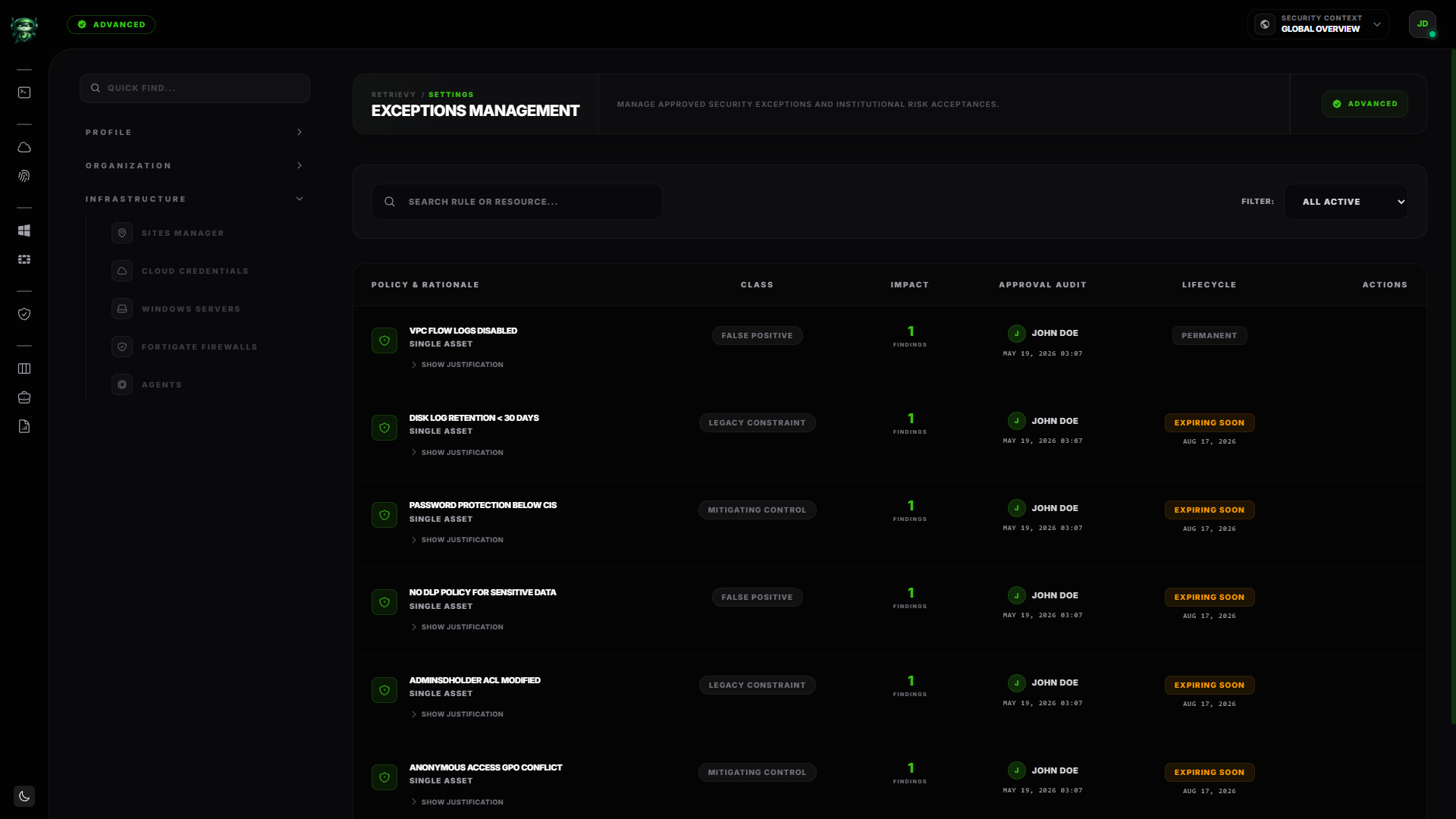
Open Security Exceptions in the main navigation. The page header reads Exceptions Management with the subtitle Manage approved security exceptions and institutional risk acceptances.
You'll also land here from any finding card that already has the Risk Accepted badge: click Manage in Registry in the card's footer.
Accepting a finding as known risk
Open the finding from the Hardening Kanban board, then click Accept Risk in the drawer footer. The Security Exception modal opens with the subtitle Internal Governance Active.
The modal has four required pieces of input.
1. Risk Classification
Pick one of the four:
| Classification | When to use it |
|---|---|
| False Positive Alert | Rule is flagging a non-security issue. |
| Legacy Infrastructure | System cannot be patched or moved. |
| Mitigating Control Active | Alternative security measures already in place. |
| Accepted Business Risk | Management has accepted the specific risk. |
The classification shows up as a badge in the Class column of the registry, so future reviewers know why an exception exists at a glance.
2. Exception Scope
| Scope | What it does |
|---|---|
| Single Asset | Suppress this finding for the one specific resource it's on. |
| Global Policy | Mute this rule across the entire environment. Affects every resource the rule matches. |
Global Policy is the heavier choice. Use it when the rule itself is wrong for your environment (a CIS check that doesn't apply because you have a different compensating control everywhere), not when one specific instance is OK.
3. Duration Strategy
| Duration | Behavior |
|---|---|
| Permanent | Exception never expires. |
| Temporary | Exception auto-revokes on the expiry date. |
If you pick Temporary, an Expiration Timeline picker appears with 30 Days, 90 Days, 180 Days, and Custom buttons. Custom opens a date picker that requires a date at least one day in the future.
Default to Temporary unless the risk genuinely never goes away. Temporary exceptions get re-reviewed when they expire (see below); permanent ones can drift out of relevance.
4. Technical Justification
A required free-text field. Minimum 10 characters. The placeholder reads Provide detailed architectural or operational justification for this security exception... Write enough that someone reading the audit log six months from now understands why this exception exists.
There's also an optional Compensating Controls field with the placeholder Describe any mitigating actions taken to reduce the impact of this risk (e.g., restricted access, VPC isolation)... Use this when the Mitigating Control Active classification applies and you want to document what the compensating control actually is.
Click Confirm Exception to save. The exception is active immediately, your Retrievy Index recomputes within seconds, and the finding moves to the Kanban Accepted Exceptions column with the Risk Accepted badge.
The registry
The Exceptions Management page lists every exception in the workspace. The table has six columns:
| Column | What it shows |
|---|---|
| Policy & Rationale | The rule title, the scope (Single Asset or Global Policy), and the justification text (expand to read full). |
| Class | The risk classification badge. |
| Impact | How many findings this exception currently suppresses (for example 5 Findings for a Global Policy that matches five resources). |
| Approval Audit | The approver's avatar, name, and the timestamp of the approval. |
| Lifecycle | A status badge (Permanent, Active, Expiring Soon, or Expired) plus the expiry date. |
| Actions | The Edit Lifecycle (pencil) and Revoke Exception (trash) buttons. Visible on row hover. |
A search box at the top filters by rule title or resource (placeholder: SEARCH RULE OR RESOURCE...).
Next to the search, a Filter: dropdown narrows the list:
| Filter | Meaning |
|---|---|
| ALL ACTIVE | Every non-revoked exception (default). |
| ACTIVE ONLY | Exceptions expiring more than seven days from now. |
| EXPIRING SOON | Exceptions expiring within the next seven days. |
| PERMANENT | Exceptions with no expiry date. |
| EXPIRED | Exceptions whose expiry date has passed. |
When the workspace has no exceptions at all, the page shows the empty state Zero Active Exceptions with the line Your current risk profile is fully aligned with governance policy.
Extending or shortening an exception
Hover the row, click the pencil icon (Edit lifecycle). The Edit Lifecycle modal opens with the subtitle Update how long this exception suppresses findings.
Switch between Permanent and Temporary. If Temporary, pick a new window from the dropdown: In 30 days, In 90 days, In 180 days, or Custom date. Click Save Lifecycle.
The toast confirms with either Exception now permanent. or Exception expires [date].
Revoking an exception
Hover the row, click the trash icon (Revoke exception). A confirmation modal opens with the title Revoke Security Exception? and the warning Suppressed findings will return to active remediation dashboards and the score will recompute.
Click Revoke Exception to confirm. The toast confirms Security Exception revoked successfully. The underlying findings flip back to Open and reappear in the Kanban Triage Required column. Your Retrievy Index recomputes within seconds.
Revocation is final. To re-accept the risk later you'd create a new exception from scratch.
Expiry behavior
When a Temporary exception's expiry date passes, two things happen:
- The finding (or every finding the exception covered) returns to Open state. It reappears in the Kanban Triage Required column and starts counting toward your weighted failure count again.
- The exception's lifecycle badge in the registry flips to Expired. The record stays in the registry as an audit-trail entry.
Seven days before expiry, the approver gets an email with the subject [Retrievy] Security Exception Expiring Soon: <rule title>. The body explains that the finding will return to active status and links back to the registry so the approver can decide whether to remediate or extend.
You can also use the EXPIRING SOON filter on the registry to see every exception inside its seven-day warning window.
How this affects your Retrievy Index
Active exceptions are excluded from your weighted failure count. Concretely:
- A Critical finding with weight 100 normally pulls your score down. If you accept it as risk, the 100 drops out of the formula immediately.
- The finding still counts toward your audit size, so your scaled audit size stays the same. (Without that, accepting a risk would silently raise the cost of every other open finding.)
- When an exception expires or is revoked, the weight returns to the formula and the score adjusts within seconds.
See How the Retrievy Index is calculated for the full math.
Roles and permissions
Two toggles in Settings → Roles & Permissions, both under the Security Exceptions group, protect the module:
| Toggle | What it grants |
|---|---|
| View security exceptions registry | Read the Exceptions Management page. See every active and historical exception. |
| Approve, reject, and manage security exceptions | Create new exceptions (the Accept Risk button on finding cards), edit their lifecycle, and revoke them. |
Workspace admins have both by default. Other roles depend on how your team has configured Settings → Roles & Permissions.
Troubleshooting
Symptom: I clicked Accept Risk on a finding but the modal opened with the Confirm Exception button greyed out. → Fix: The Technical Justification field is empty or under 10 characters. Type a real justification.
Symptom: I accepted a finding but it's still showing Open on the Kanban. → Fix: Reload the board. After a network blip the Kanban can take a few seconds to catch up.
Symptom: A finding I accepted last month suddenly reappeared in the Kanban Triage Required column today. → Fix: The exception expired. Check the EXPIRED filter on the registry. Either remediate the finding or create a fresh exception with a new expiry.
Symptom: I'm trying to extend an exception but the Edit Lifecycle button isn't visible. → Fix: You don't have the Approve, reject, and manage security exceptions permission. Ask your workspace admin to grant it or to extend the exception on your behalf.
Symptom: I revoked an exception by accident. → Fix: Revoke is final. Open the original finding in the Kanban, click Accept Risk again, and recreate the exception with the same classification and justification.
Related
- Hardening Kanban (where the Accept Risk button lives)
- How the Retrievy Index is calculated
- Findings lifecycle