Install the agent on Windows
The Retrievy Agent on Windows is a small service that scans your on-prem Active Directory and Group Policies and ships the results to Retrievy. It runs as LocalSystem (no Domain Admin required), talks outbound over HTTPS on port 443, and opens no inbound ports. Installation takes about five minutes.
If you're on Linux or your scanning needs are FortiGate-only, use the Docker install instead. The two variants share the same Agents fleet view inside Retrievy.

Before you start
You need:
- A Windows Server 2012 R2 or later, 64-bit. The agent is a self-contained single-file .NET 8 executable, so the server does not need .NET installed.
- Local administrator on the server to run the MSI installer.
- Outbound HTTPS (port 443) to
retrievy.comfrom the server. No inbound ports are required. - A Retrievy account with the Manage Agents permission. Without it the New Token button on the Agents page is disabled.
The agent will scan whichever server it runs on:
- On a domain controller, it picks up the full directory plus GPOs from SYSVOL.
- On a member server or workstation, it picks up local CIS hardening checks. Use a Group Managed Service Account (gMSA) with read-only AD permissions if you want it to read the directory too.
You do not need a separate agent per domain controller. One agent per domain is enough.
Step 1. Generate an install token
In Retrievy:
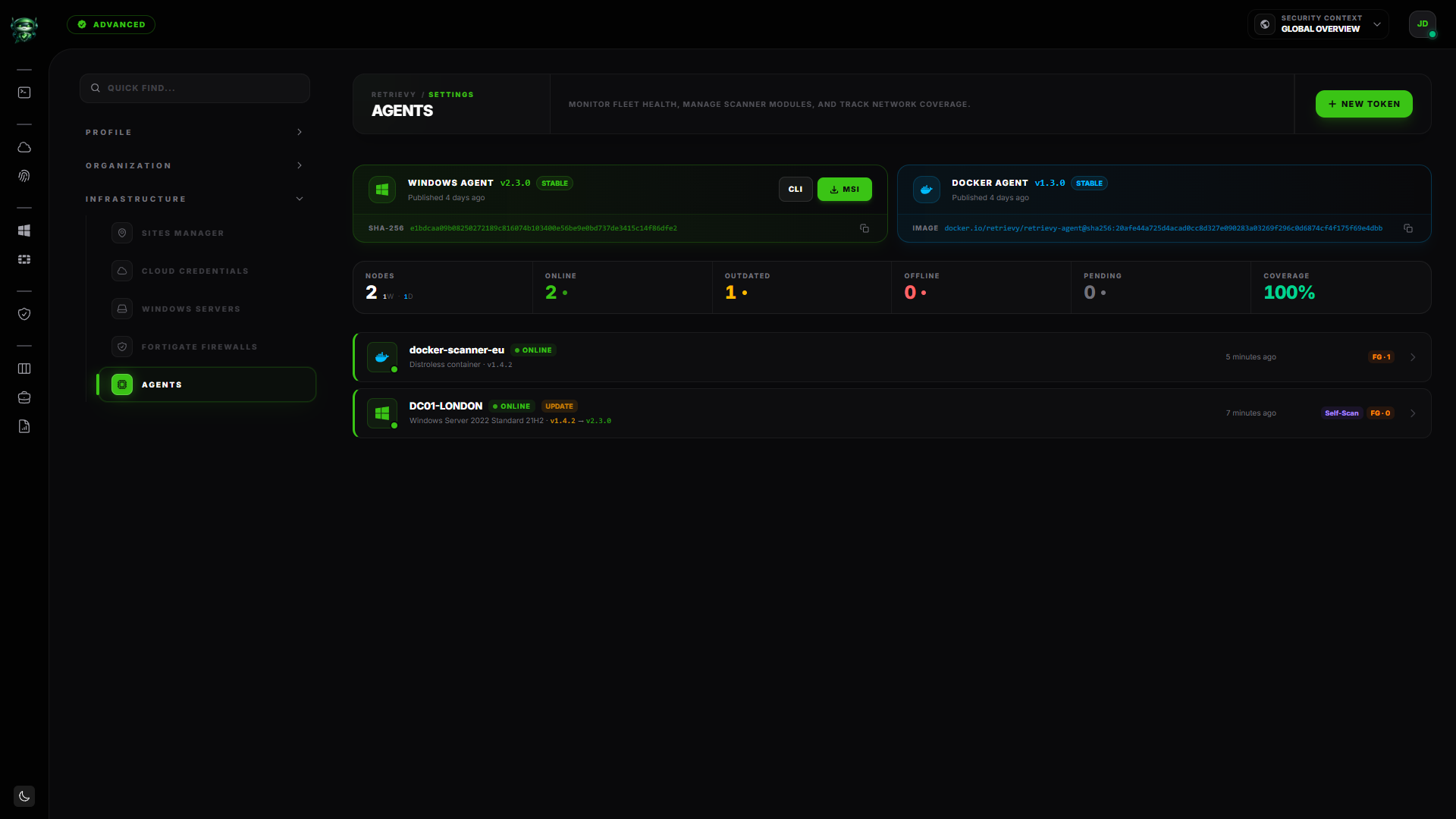
- Open Fleet → Agents in the navigation. The page is titled Agents with the subtitle Monitor fleet health, manage scanner modules, and track network coverage.
- Click New Token in the top-right.
- In the modal, pick Windows Agent under Runtime.
- Enter an Agent Name that identifies the server (something like
dc01-londonworks well). - Click Generate Token.
The token appears once. Copy it now. You won't be shown it again.
The token is one-time-use and expires in 60 minutes. As soon as a server registers with it, the token is consumed. If the timer runs out before you finish installing, rotate the token and start over.
Step 2. Download the MSI
On the same page, click Download MSI. The file is named RetrievyAgent-v<version>.msi. It's around 40 MB and signed with the Retrievy code-signing certificate.
Copy it to the target Windows server.
Step 3. Install on the server
Open a PowerShell or CMD prompt as administrator on the target server and run:
# Install the Retrievy Agent silently with your token
msiexec /i RetrievyAgent-v<version>.msi /qn `
  TOKEN="rv_install_xxxxxxxxxxxxxxxxxxxx" `
  HOST="https://<your-workspace>.retrievy.com"
Replace <version> with the actual version number in the MSI filename, <your-workspace> with your workspace subdomain (the URL you use to sign in), and the TOKEN value with the install token you generated.
Alternatively, double-click the MSI for an interactive install. The installer prompts for the token and host.
The installer does three things:
- Registers a Windows service named
RetrievyAgentrunning asLocalSystem. - Stores your install token in the registry under
HKLM\SOFTWARE\Retrievy\Agent, DPAPI-encrypted. - Starts the service.
On first start, the service:
- Generates an RSA key pair locally.
- Calls Retrievy with your install token to register the server and exchange it for a permanent agent token.
- Submits its public key for the proof-of-possession check that protects every subsequent API call.
- Clears the install token from the registry (the install token has done its job).
- Runs the first scan within a minute or two.
Step 4. Verify the agent is online
Back in Retrievy, on the Fleet → Agents page, the new server appears in the fleet list with one of these status badges:
| Badge | Meaning |
|---|---|
| Online (green, pulsing) | The agent has sent a heartbeat in the last 10 minutes. |
| Outdated (amber) | The agent is reachable but running an older version. It will self-update on its next heartbeat. |
| Offline (gray) | No heartbeat in over 30 minutes. |
| Pending | The token has been generated but no server has registered with it yet. |
| Revoked (red) | The agent has been explicitly revoked from this page. |
The fleet summary at the top of the page shows your Nodes, Online, Outdated, Offline, Pending, and Coverage counts.
If the server reads Online within five minutes of installation, you're done. The first scan results land in the Command Center once they finish.
What the agent scans
On a domain controller:
- Active Directory posture checks: inactive admin accounts, password-never-expires accounts, Kerberoastable accounts, AS-REP roasting candidates, LAPS deployment coverage, deep group nesting, domain functional level, SMB signing on DCs.
- CIS Windows hardening checks on the host: SMBv1, NTLMv1, SMB signing, RDP NLA, WDigest, AutoLogon.
- GPO X-Ray: full read of the OU and GPO hierarchy plus the raw
Registry.polfiles from SYSVOL.
On a member server or workstation, only the CIS host checks run. The agent skips the directory and SYSVOL paths.
A full scan takes one to a few minutes depending on the size of your directory. Scans run automatically every day at 00:01 local time, plus on demand from Scan Now on the agent's detail panel.
What the agent does NOT do
- No writes to Active Directory. All AD access is read-only.
- No remediation. The agent reports posture. Remediation is your team's call, surfaced as findings in Hardening Kanban.
- No inbound listening port. The service only initiates outbound connections.
- No data sent in the clear. Every snapshot is encrypted in transit (TLS 1.2+) and on disk while queued.
- No Domain Admin required.
LocalSystemis sufficient on a DC. On non-DC member servers, a gMSA with read-only AD permissions covers the rest.
Auto-update
The agent checks for a newer version on every 10-minute heartbeat. When a new release is available, it downloads the signed MSI, verifies the SHA-256, and runs msiexec /i <msi> /qn /norestart. The service restarts itself after the install. No action from you.
If you want to pin a version (for change-control reasons), open a support request. Auto-update can be disabled per agent on the Agents page.
Uninstall
From the server:
- Add/Remove Programs → find Retrievy Agent → Uninstall.
- Or silently:
msiexec /x RetrievyAgent-v<version>.msi /qn.
The uninstaller removes the service, the binaries, and the install-time registry values (ApiBaseUrl, Version). The agent token generated at first run is intentionally left behind in HKLM\SOFTWARE\Retrievy\Agent so that re-installs don't double-register. If you want a fully clean removal, delete that registry key by hand after the MSI uninstall.
From Retrievy, on the Fleet → Agents page, find the agent and click Revoke to invalidate its token on the server side. A revoked agent cannot heartbeat back even if the service is still running on the server.
Troubleshooting
Symptom: The agent installs but the status badge stays Pending forever.
→ Fix: The agent never reached retrievy.com. Check from the server: Test-NetConnection retrievy.com -Port 443 should return TcpTestSucceeded : True. If it doesn't, your firewall or proxy is blocking outbound 443.
Symptom: Status flips between Online and Offline every few minutes.
→ Fix: The heartbeat is failing intermittently, usually because of TLS interception by a proxy. Confirm the server trusts the retrievy.com cert chain (Invoke-WebRequest https://retrievy.com -UseBasicParsing). If your network does TLS man-in-the-middle, the agent rejects the spoofed cert and falls offline.
Symptom: The agent is Online but no findings appear in the Dashboard. → Fix: Open the agent's detail panel and check the last scan timestamp. If the first scan has not finished yet, wait a few minutes. If the scan completed but findings are empty, your domain may genuinely have no failures (rare). Run Scan Now to confirm.
Symptom: Installer fails with Windows Installer Service could not be accessed.
→ Fix: This is a generic MSI error. Make sure you ran the shell as administrator and that the Windows Installer service (MSIServer) is running.
Symptom: The fleet list shows Outdated for hours and the agent never self-updates.
→ Fix: Auto-update needs outbound 443 to the same retrievy.com host. Same firewall check as above. If the network is fine, manually re-run the MSI for the current version; the existing installation upgrades in place.
Related
- Install the agent with Docker (the FortiGate-focused variant for non-Windows environments)
- How the Retrievy Index is calculated
- Command Center
- Hardening Kanban