GPO Library
GPO Library is the policy-first view of GPO X-Ray. Use it when you know the policy name, need an inventory, or want to understand what one GPO contributes across the domain.
Find and sort policies
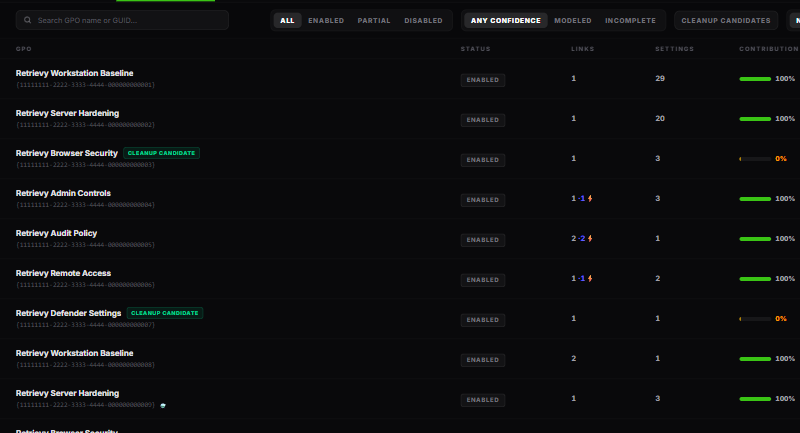
Use Search GPO name or GUID… to find a policy. The toolbar also supports:
- status filters: All, Enabled, Partial, and Disabled
- confidence filters: Any confidence, Modeled, and Incomplete
- Cleanup candidates for policies with no modeled registry-setting wins
- sorting by Name, Wins, Scope, or Changed
You can also search from the GPO X-Ray header with the gpo: prefix. Selecting a result opens and expands the matching Library row.
Read the inventory
| Column | Meaning |
|---|---|
| GPO | Display name and policy identifier. |
| Status | Enabled, Partial, or Disabled. Partial means either the user or computer partition is disabled. |
| Links | Number of collected links to containers. |
| Settings | Registry-based policy settings found in the snapshot. |
| Contribution | Percentage of the GPO's collected registry settings that win somewhere in the latest modeled snapshot. |
| Est. scope | Collected users and computers below linked containers. Filtering and runtime targeting are not applied to this estimate. |
| Confidence | Modeled or Incomplete, with reasons available on hover. |
No registry settings is different from a contribution of zero. A zero contribution means registry settings were collected but none won in the modeled snapshot. Older records may show that scope is pending a new scan instead of showing zero.
Icons beside a GPO call out conditions that require separate validation, such as security filtering, a WMI filter, Group Policy Preferences, or loopback processing.
Expand a GPO
Open a row to review the policy in five parts:
- What it is · linked locations lists its containers and marks enforced or disabled links.
- Why it matters summarizes contribution and estimated scope.
- What changed shows the latest plain-language policy change stories.
- Version history lists the observed version, collection time, and agent version.
- What to do next links to the most useful follow-up view and suggests validation steps.
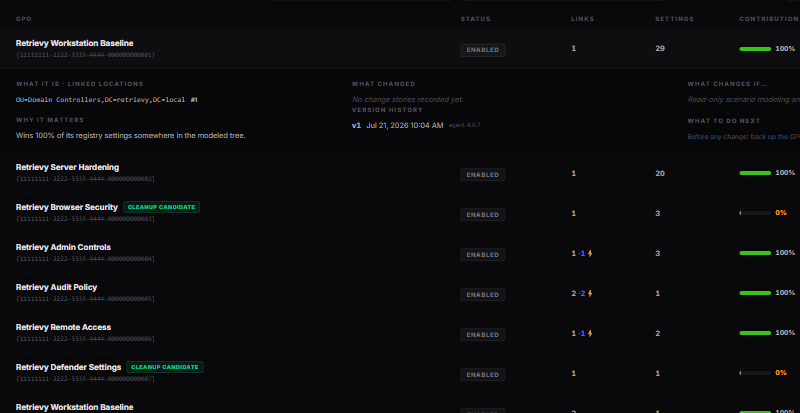
The version list is observation history, not a backup of the GPO. Back up the policy with your normal Active Directory process before changing or deleting it.
Review a cleanup candidate
A policy becomes a Cleanup candidate when none of its collected registry settings wins anywhere in the latest modeled snapshot. That is a prompt to investigate, not proof that the policy is unused.
Before changing it:
- Check confidence and freshness.
- Review every linked location and the estimated scope.
- Review recent change stories and versions.
- Check for security filtering, WMI, Preferences, scripts, software deployment, and loopback use outside the modeled registry result.
- Back up the GPO, test in a controlled OU, and verify endpoints.
How this affects your Retrievy Index
The Library itself does not change the score. Cleanup candidates may correspond to informational GPO findings, which carry zero weight. Active Directory security findings remain separate. See the scoring rules catalog.
Troubleshooting
The Library is empty. Complete a new GPO scan. The inventory is created from the next compatible snapshot.
Scope shows pending or looks too low. Run a new scan and check confidence. Scope is an estimate from collected containers; it does not apply runtime security filtering or WMI evaluation.
Contribution is zero but the GPO matters. The policy may provide Preferences, scripts, software, filtering, or other content not represented by registry-setting wins. Review the GPO backup and endpoint results before acting.