Identity Explorer
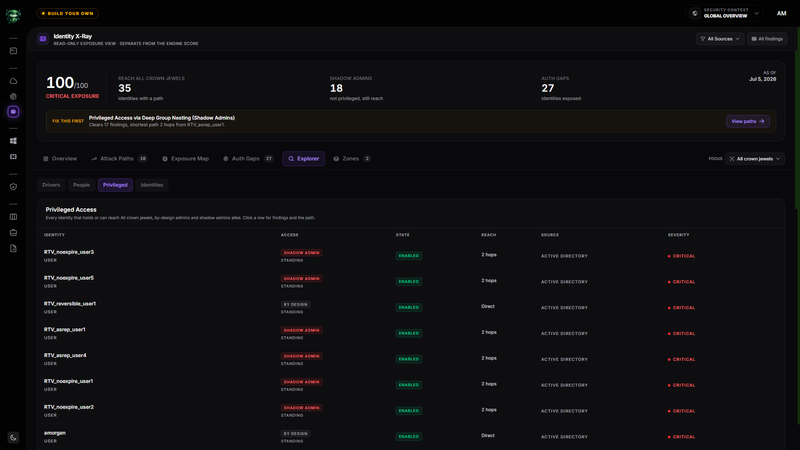
The Explorer tab gives you four ways to investigate the identity data behind the summary. Switch between remediation priorities, people, privileged access, and the full at-risk identity inventory without leaving Identity X-Ray.
Before you start
- Complete the prerequisites in the Identity X-Ray overview.
- Set the Data Source and Focus controls before comparing identities.
- Use All Sources when you want Retrievy to unify the same person across sources.
Choose an Explorer view
| View | Use it to |
|---|---|
| Drivers | Start with the finding groups that clear the most exposure. |
| People | Review the same human across multiple Data Sources. |
| Privileged | Compare identities that hold or can reach the selected crown jewels. |
| Identities | Browse the complete at-risk identity inventory in the current scope. |
Prioritize Drivers
Top Exposure Drivers ranks finding groups by remediation impact. Items that open a path to a crown jewel lead the list.
Each card shows the severity, affected count, Data Source, exposure pillar, and a Tier 0 label when the finding opens a detected path. Select Full findings list to continue remediation from the ISPM dashboard.
Review People
People at Risk groups identities that share the same email address or user principal name. Expand a person to see the account and finding breakdown for each Data Source.
Retrievy does not automatically merge possible matches that lack a shared email identifier. It lists them under Possible same person for review. This prevents similar display names from being treated as one person without supporting evidence.
Review Privileged Access
Privileged Access includes identities that hold or can reach the selected crown jewels. Its columns show:
- Access: By design or Shadow Admin, plus Standing or PIM-eligible when assignment evidence is available.
- State: Enabled, Disabled, Guest, or Not collected.
- Reach: Direct, a hop count, or a dash when no route applies.
- Source and Severity for investigation context.
PIM-eligible means the assignment must be activated before it becomes effective. It remains relevant because it can still create a route to a crown jewel.
Browse Identities
Identity Explorer lists up to the first 50 identities in the current scope, ordered by exposure. The table shows Identity, Type, Source, Findings, Severity, and whether Tier 0 is Reachable.
If more identities match, the footer reports how many remain. Select Full findings list when you need the complete finding workflow.
Use the identity detail drawer
Select an identity from Privileged, Identities, the map, or an expanded attack-path group. The drawer can show:
- Path to Tier 0 and All Detected Paths.
- Risk Markers collected for the identity.
- Finding count and either Blast Radius or Top Severity.
- The finding title and rationale for each detected check.
Press Escape, select the close button, or select outside the drawer to return to the list.
How this affects your Retrievy Index
Changing an Explorer view or opening an identity does not change your Retrievy Index. Drivers helps you find the active finding groups most likely to improve the ISPM module score after remediation and verification.
The Index continues to use the severity and state rules in the scoring rules catalog.
Troubleshooting
Symptom: The same person appears as two entries in People.
Fix: The source identities do not share a verified email address or user principal name. Check Possible same person, then correct the identity attributes in the source systems if they should match.
Symptom: State reads Not collected.
Fix: The current evidence does not include a positive enabled, disabled, or guest signal for that identity. Do not treat Not collected as Enabled.
Symptom: An identity appears under Identities but not Privileged.
Fix: It has identity findings but does not hold or reach a crown jewel in the current source and focus.