Identity Exposure Map
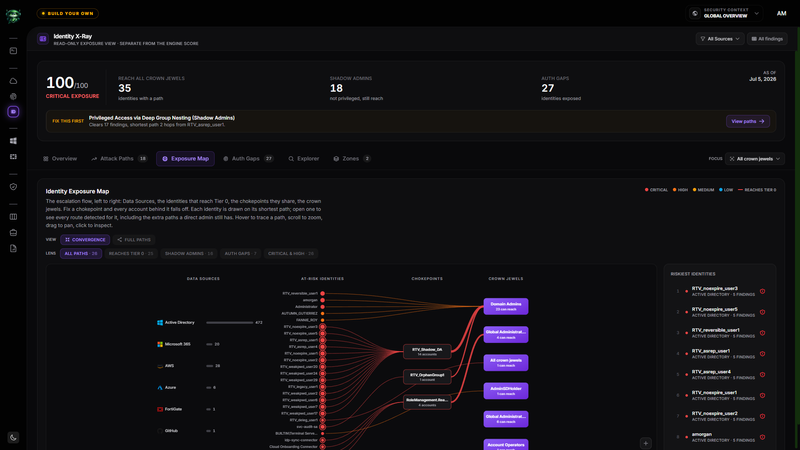
The Exposure Map turns detected privilege relationships into an investigation flow. Use it to see where exposed identities converge, which crown jewels they reach, and which shared relationship gives you the best remediation point.
Before you start
- Complete the prerequisites in the Identity X-Ray overview.
- Use All Sources and All crown jewels for the broadest view.
- Collect relationship evidence from Active Directory or from an entitlement-enabled Microsoft Entra or Azure Data Source.
Read the Convergence view
The default Convergence view runs from left to right:
- Data Sources lists the sources contributing identity inventory.
- At-risk identities shows identities with a detected route in the current scope.
- Chokepoints groups the shared relationships those identities pass through.
- Crown jewels shows the built-in Tier 0 targets and Privileged Zones in your current focus.
Line thickness reflects how many identities share a route. A wider line into one chokepoint signals that a single correction may remove several paths.
Switch to Full paths
Select Full paths to draw each detected hop as its own node. Use this view when the convergence layout hides the intermediate groups or roles you need to validate.
Select Convergence to return to the compact remediation view. Risk lenses are available in the convergence view and are disabled while Full paths is active.
Apply a lens
Use the Lens controls to redraw the map:
| Lens | What remains visible |
|---|---|
| All paths | Every identity path in the current source and focus. |
| Reaches Tier 0 | Identities with a detected route to built-in Tier 0. |
| Shadow admins | Identities that reach a crown jewel without nominal privileged status. |
| Auth gaps | Path-bearing identities that also have an authentication gap. |
| Critical & High | Identities whose highest active finding is Critical or High. |
The number beside each lens is the number of matching identities. A lens with no matches stays unavailable.
Navigate the map
- Hover an identity to trace its displayed route.
- Scroll over the map to zoom.
- Drag the map to pan.
- Use Zoom in, Zoom out, or Reset view in the lower-right corner.
- Select an identity to open its details.
- Select a Data Source in the left rail to scope the entire Identity X-Ray workspace to that source.
Riskiest Identities lists the first identities to investigate based on reach, severity, and finding count. Select a row to open the same identity detail drawer used by Explorer.
Interpret what is not drawn
The convergence map emphasizes the shortest detected path for each identity. The detail drawer preserves additional detected routes under All Detected Paths.
Large scopes may show only part of the result on the map. Read the caption below the map for the displayed and matching counts, then use Explorer or Attack Paths for the remaining identities. In Full paths, a note at the bottom reports nodes that were not drawn.
No line means no relationship path was detected in the current evidence and scope. It does not prove that no uncollected route exists.
How this affects your Retrievy Index
Changing the map view, lens, zoom, Data Source, or focus does not change your Retrievy Index. The map is a read-only view of collected evidence.
The findings attached to mapped identities still contribute to the ISPM module score according to the scoring rules catalog. Correct the source-side relationship and collect new evidence before expecting the Index to change.
Troubleshooting
Symptom: Data Sources appear, but there are no connecting lines.
Fix: The selected source has identity inventory but no detected relationship path. Switch to All Sources, then verify that Active Directory or an entitlement-enabled Microsoft source completed a recent scan.
Symptom: The map looks crowded.
Fix: Choose a narrower Lens, select one Data Source, or use Focus to inspect one Privileged Zone.
Symptom: An identity's additional route is missing from the map.
Fix: Select the identity and review All Detected Paths in the drawer. The map emphasizes the shortest detected route.