Privileged Zones
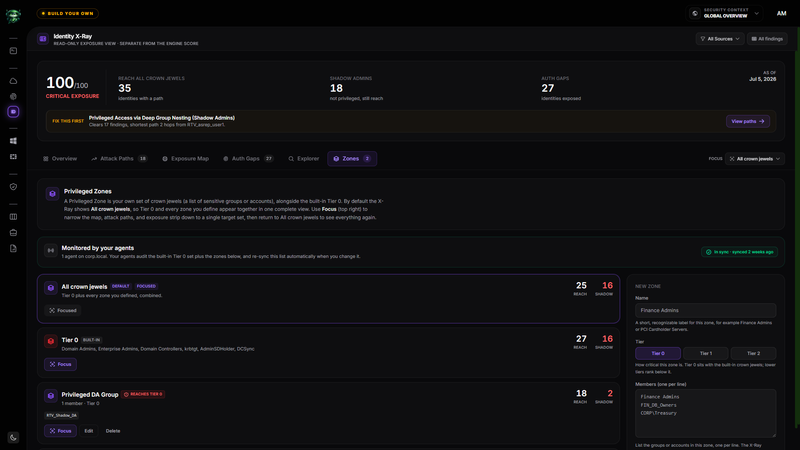
Use Zones to define the groups and accounts that matter most to your organization. Identity X-Ray treats each Privileged Zone as a crown-jewel target and shows who can reach it alongside the built-in Tier 0 targets.
Before you start
- Complete the prerequisites in the Identity X-Ray overview.
- Connect an active Windows agent and complete an Active Directory scan.
- Prepare the directory group or account names you want to monitor.
Choose zone members carefully. A zone changes which targets Retrievy sends to your Windows agents for monitoring. It does not change the groups or accounts in Active Directory.
Understand the default targets
Identity X-Ray always includes the built-in Tier 0 set. The page identifies targets such as Domain Admins, Enterprise Admins, Domain Controllers, the Kerberos service account, protected administration objects, and directory replication rights.
After you add at least one zone, All crown jewels becomes the default combined focus. It includes built-in Tier 0 and every custom zone without double-counting identities that reach more than one target set.
Select Focus on a zone card when you want the summary, attack paths, map, and privileged inventory to use only that target set. Select All crown jewels from the page-level Focus menu to restore the combined view.
Add a zone
- Open Zones.
- Enter a recognizable label in Name, such as
Finance Admins. - Choose Tier 0, Tier 1, or Tier 2 under Tier. Zones are ordered by tier and then by name.
- Enter each target under Members (one per line).
- Review the live match result against the current directory evidence.
- Select Add zone.
The Name field accepts up to 120 characters. The member list removes blank and duplicate entries when you save it.
Format member names
Use one of the formats described under How names are matched:
| Example | Use |
|---|---|
Finance Admins | Group common name as it appears in the directory. |
FIN_DB_Owners | Group or account name used for sign-in and directory lookup. |
RETRIEVY\Treasury | Domain-qualified group or account name. |
svc-payroll | Service account name. |
Identity X-Ray compares these names with identities found in Active Directory evidence. Matching ignores letter case and accepts qualified or unqualified forms where they resolve to the same identity.
Interpret match and coverage states
The form reports how many names match the current findings before you save:
- Names matched against current findings confirms an immediate match.
- Not in current scans means the current evidence does not contain that name. You can still save it for the next scan, but check the spelling when you expected a match.
After saving, a zone can show:
| Status | Meaning |
|---|---|
| Awaiting next scan | No completed directory scan has covered the zone since you created it. |
| No match found | A scan completed, but none of the configured names matched an identity. |
| Unmatched-member note | Some configured members matched and others have not appeared in scan evidence yet. |
| Reach and shadow counts | At least one member matched, so Identity X-Ray calculated who reaches the zone and who qualifies as a Shadow Admin. |
A custom zone can also show Reaches Tier 0 when the zone target itself has a detected route into built-in Tier 0.
Monitor agent synchronization
Monitored by your agents shows how many active Windows agents receive the crown-jewel configuration and which Active Directory domains they cover.
- In sync means every active Windows agent fetched the current zone configuration.
- Sync pending means at least one agent has not fetched the latest configuration.
Select the status button to request another synchronization. Agents also fetch the current configuration on their normal update cycle.
Edit or delete a zone
Select Edit to load a zone into the form, then select Save zone. Select Cancel to discard the form state.
Select Delete and confirm Delete this Privileged Zone? to remove the zone from Identity X-Ray and the configuration sent to agents. Deleting a zone does not remove any Active Directory object.
How this affects your Retrievy Index
Creating, focusing, editing, or deleting a Privileged Zone does not directly change your Retrievy Index. Zones change the identity targets that Retrievy analyzes and can lead to new findings after a scan.
Any resulting identity findings follow the ISPM severity and state rules in the scoring rules catalog.
Troubleshooting
Symptom: A configured member stays under Not in current scans.
Fix: Compare the spelling with Active Directory, try the group common name or a domain-qualified name, and complete another directory scan.
Symptom: The zone shows No match found.
Fix: A scan completed after you created the zone but did not find any configured member. Check for a typo or confirm the target group currently has discoverable directory evidence.
Symptom: Sync pending does not clear.
Fix: Select the status button, then check the Windows agents under Fleet for an active connection and a recent heartbeat.
Symptom: A zone disappears from Focus after deletion.
Fix: Identity X-Ray returns to All crown jewels when the focused zone no longer exists.